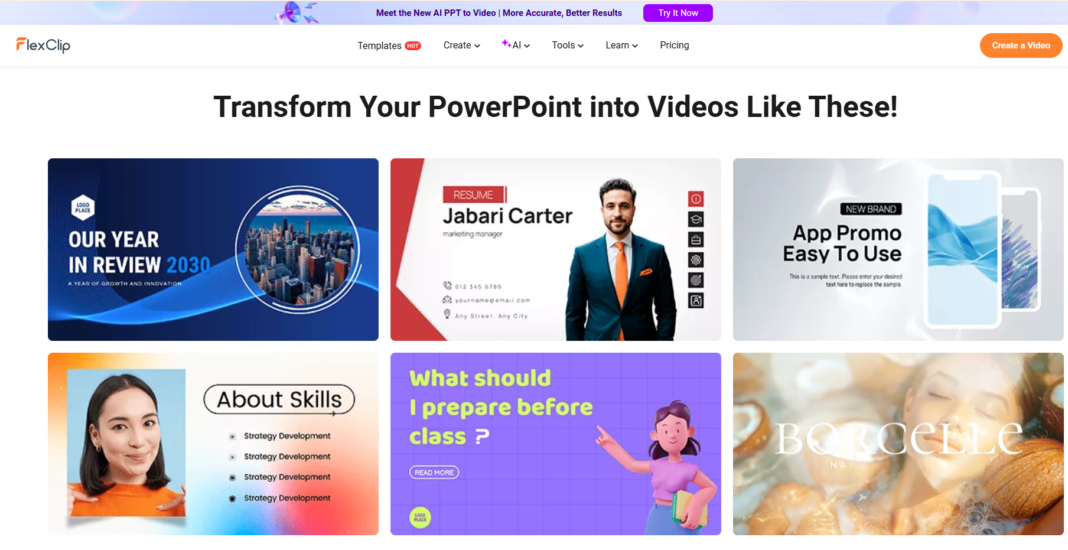


We have all been there, you spend hours making a perfect PowerPoint presentation, but you know that most people just don’t have the patience to read through 20 slides. I wanted a way to make my presentations more exciting for my team without spending another five hours learning how to use complicated video editing software.
That is when I tried using an AI PowerPoint to Video converter. It changed everything. If you want to make your work or school projects stand out, here is how you can do it too.
Why turn your slides into a video?
A video is much easier to watch than a set of slides. It moves on its own, it has music, and it can even have a voice reading the text for you. Whether you are a teacher trying to help students or a business person trying to show a new idea, a video just works better.
What makes this tool great?
I used a tool called FlexClip, and here is what I noticed right away:
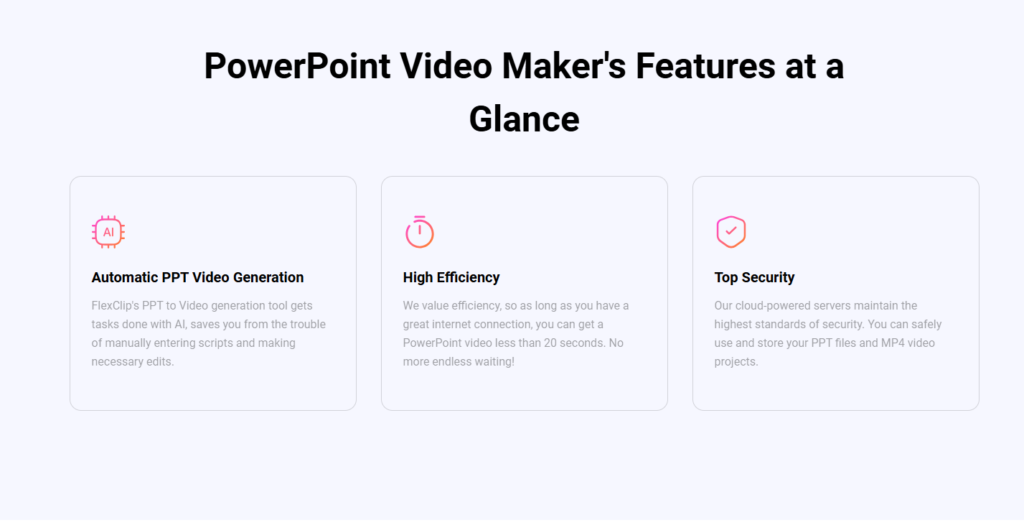
- It’s incredibly fast: I was worried I’d be waiting all day. But honestly, as long as your internet is working well, the video is ready in less than 20 seconds.
- No more recording your own voice: I don’t really like the way my voice sounds on record. This tool takes the words from your slides and uses a professional-sounding AI voice to read them out. There are over 400 voices to choose from, so you can pick one that sounds just right.
- It understands everyone: It works in 140 different languages. This is a lifesaver if you are working with people from different countries.
- You are still the boss: Even though the AI does the hard work, you can still change things. If you want a different color, a different transition between slides, or a new animation, you just click and change it. It’s very simple.
- Safe and Secure: You don’t have to worry about your files. The servers are secure, so your projects stay private.
Step-by-Step Guide: How to Use FlexClip AI PPT to Video
It only takes three simple steps to get your video ready:
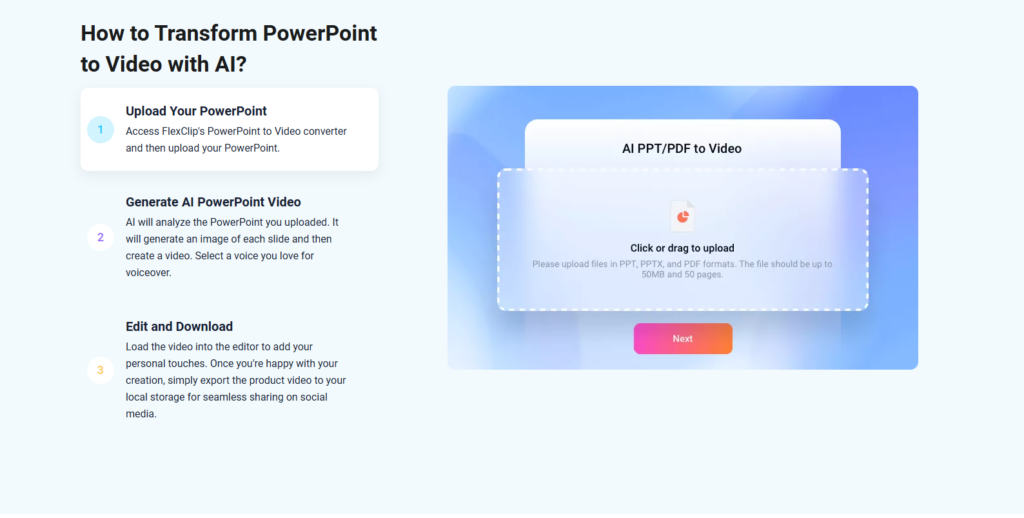
Step 1: Upload Your PowerPoint
“First, head over to the FlexClip website and find the ‘FlexClip AI PPT to Video‘ tool. Click the upload button and select your PowerPoint file from your computer. It takes just a second to load.”
Step 2: Let the AI Generate the Magic
“This is the cool part. The AI looks at every slide and turns them into high-definition images. It then reads the text on your slides and creates a unique script. You get to pick the voice you like and even set how fast they talk.”
Step 3: Add Your Personal Touch
“If you don’t like exactly what the AI made, don’t worry. You can click on any part of the video to change the transitions, add new music, or move the text around. It’s very easy—if you can click a mouse, you can do this.”
Step 4: Export and Share
“Once it looks perfect, hit the export button. You can save it as an MP4 file to your computer, put it straight on YouTube, or send a short link to your friends or coworkers.”
Sharing your video
Once your video is done, you can save it to a folder on your computer, put it on your social media, or even send people a short link so they can watch it online. It makes sharing your ideas so much easier.
Pro-Tips for the Best AI Video Results
“After testing several presentations, I found a few tricks that make the AI work even better. If you want a ‘perfect’ video, keep these in mind:
- Keep Slides Clean: Don’t crowd your slides with too much text. The AI performs best when it has 3-4 main points to read. It makes the voiceover sound more natural.
- Use High-Quality Images: Since FlexClip turns your slides into high-definition frames, using clear, bright images in your original PPT will make the final video look stunning.
- Check the Script: Before you hit ‘Export,’ give the AI-generated script a quick read. Sometimes I like to add a small joke or a personal greeting at the start to make it more human.”
Who Should Use This New Tool?
“The great thing about the FlexClip AI PPT tool is that it’s useful for almost everyone.
- Teachers & Educators: Turn a long lesson into a 5-minute video. Students are much more likely to watch a video on their phone than scroll through a PDF.
- Small Business Owners: Create quick ‘Explainer Videos’ for your products without hiring a professional editor.
- Students: Make your class projects stand out. Imagine turning in a video instead of just a standard set of slides, it’s an easy way to get a better grade!
- YouTubers: If you have an informational channel, you can turn your research (on PPT) into a video base in less than a minute.”
Comparison: The Old Way vs. The AI Way
| Feature | Manual “Save as Video” (Old) | FlexClip AI Tool (New) |
| Voiceover | You must record it yourself | AI reads it for you (400 voices) |
| Time Spent | 1 – 2 Hours | Under 20 Seconds |
| Editing | Limited options | Full Professional Suite included |
| Transitions | Basic only | Cinematic AI Transitions |
| Language | Your own only | Auto-translates to 140+ languages |
Final Thoughts from the Lab
“Technology is supposed to make our lives easier, and that is exactly what this tool does. It removes the ‘fear’ of video editing. If you can make a PowerPoint, you can now make a professional video. My advice? Try it with a small 3-slide project first to see how the AI handles your voice and style. You’ll be hooked!”
Common Questions
What kind of video file do I get?
Most people use the MP4 format because it works on every phone and computer.
Can I add my own music?
Yes! You can add background music or your own voice if you prefer.
Will the quality stay high?
Definitely. The tool turns your slides into high-definition images so the video looks sharp and professional.
If you are tired of boring presentations, give this a try. It saves a lot of time and makes your work look much more professional!