
.)
User Problem Scenario: The Frozen Optimizer
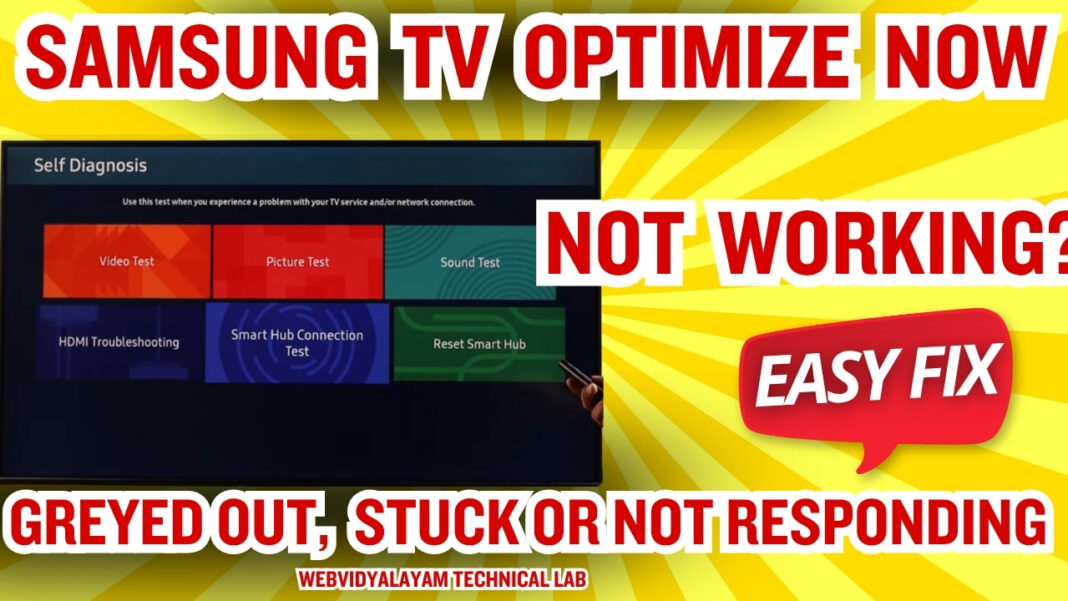
Imagine your Samsung TV starts lagging. You do the right thing: you go to Settings > Support > Device Care to hit “Optimize Now.”
The Issue: You click the button, and nothing happens. Or worse, the button is faded out (greyed) and you can’t even select it. You are stuck in a loop where the TV is slow, but the tool designed to fix the slowness is broken.
This usually happens when the TV has been in “Standby Mode” for too long without a full power cycle, allowing background “Zombie Processes” to protect their own memory space from being cleared.
System Role: What “Optimize Now” Actually Does
The Device Care Optimizer is the “System Janitor” for Tizen OS.
- Memory Management: It attempts to “Kill” background PIDs (Process IDs) that are no longer in focus.
- VRAM Flush: It clears the Video RAM used for app thumbnails and 4K metadata.
- Malware Scan: It runs a lightweight security check on the internal NAND flash.
- Hardware/Software Isolation: It checks the voltage rails for any signs of physical component failure that might be causing system lag.
Root Cause Engineering Analysis
- App Layer: An app (like Netflix or Plex) has an active “Media Session” that hasn’t timed out. Tizen OS will not “Optimize” while a media session is registered as active.
- OS Layer: Thread Deadlock. The OS is waiting for a response from the WiFi module or an HDMI-CEC device, causing the Device Care thread to hang.
- Firmware Layer: Retail Mode Flags. If the TV is in Store/Demo mode, the optimization tool is disabled to prevent customers from interfering with the display loop.
- Hardware Layer: A failing Internal Storage Sector can cause the malware scanner to hang at 0% or 99%.
The 4-Step Fix Protocol
Fix 1: Quick Recovery (The 15-Second Cold Boot)

- The Logic: This is the only way to clear a Kernel-Level Memory Lock.
- Action: While the TV is ON, hold the Power Button on your remote until the Samsung logo flashes. This flushes the Volatile RAM (VRAM) and allows the “Optimize Now” script to run fresh.
Fix 2: Contextual Reset (Source Switching)
- The Logic: Optimization is often blocked while an HDMI input is “sending data.”
- Action: Change your Source to “TV” (Live TV) before going to the Device Care menu. This closes the HDMI-CEC handshake threads.
Fix 3: Clearing the “Smart Hub” Cache
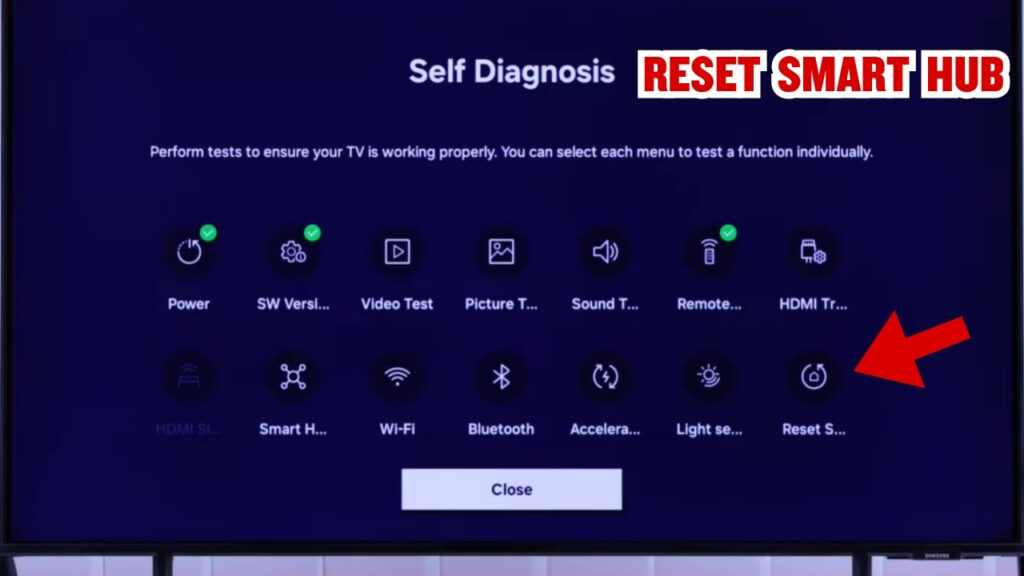
- The Logic: If the button is greyed out, the Smart Hub UI thread is likely corrupted.
- Action: Go to Settings > Support > Self Diagnosis > Reset Smart Hub. This resets the app layer without deleting your picture settings.
Fix 4: Disabling Retail Mode
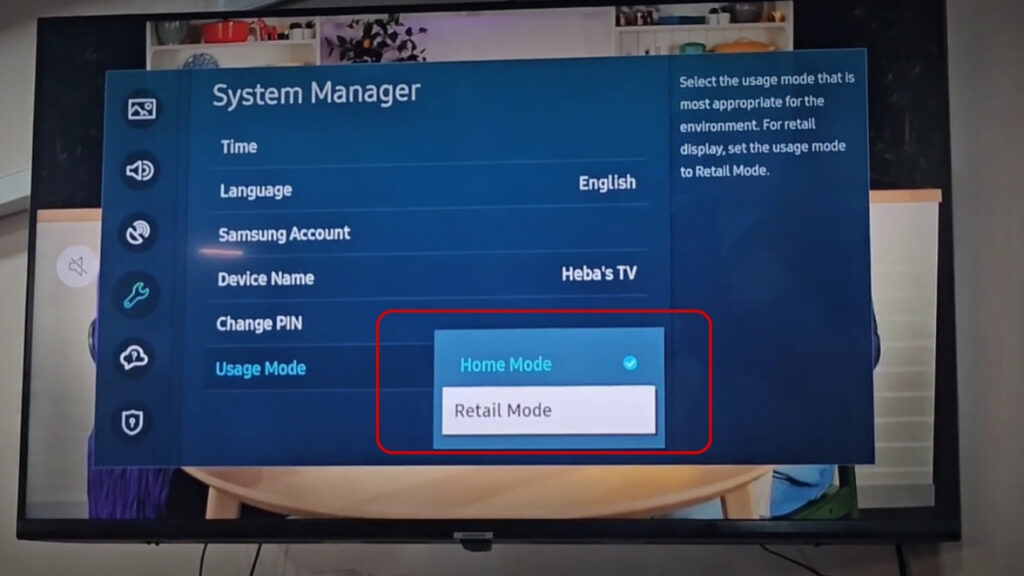
- The Logic: Optimization is logically disabled in demo environments.
- Action: Go to General > System Manager > Usage Mode and ensure it is set to Home Mode.
When the Issue Means Real Hardware Failure
If “Optimize Now” always freezes at the same percentage (e.g., 99%) even after a factory reset:
- Diagnostic: This indicates a NAND Flash Corrupt Sector. The TV’s internal hard drive is failing to read/write, causing the diagnostic tool to hang.
- Confirmation: Run the Internal Picture Test. If that also fails or hangs, the Main Logic Board requires professional repair.
Diagnostic Logic Table
| User Symptom | Technical Root Cause | Verified Engineering Fix |
| Button is Greyed Out | Active HDMI or App Thread | Switch to “TV” Source |
| Optimization Hangs at 0% | VRAM Cache Overflow | Perform Cold Boot (15s) |
| Stuck at 99% Scan | Internal NAND Flash Error | Firmware Update (via USB) |
| “Function Not Available” | Retail/Demo Mode Lock | Switch to “Home Mode” |
Technical FAQ
Q1: Does “Optimize Now” delete my Netflix login or saved channels?
The Logic: No. It is a “Safe Clean” tool. It only clears the temporary Heap Memory and background caches. Your permanent data remains untouched.
Q2: How often should I run the optimizer?
The Engineering Recommendation: At WebVidyalayam, we recommend running it every 72 hours of viewing time. Modern 4K HDR metadata is very “heavy” and will eventually cause Tizen 9.0 to lag if not flushed.
Q3: Can I automate this process?
The Logic: Yes. Samsung includes an “Auto Optimization” feature in Device Care settings. We recommend setting this to run daily at a time when the TV is typically in standby.
Preventive Maintenance Engineering
- Weekly VRAM Discharge: Use the “Cold Boot” (Fix 1) once a week to prevent “Zombie Processes” from forming.
- Power Stability: Use a high-quality Surge Protector. Voltage fluctuations are the primary cause of firmware “Logic Locks” that disable diagnostic tools.
- App Integrity: Uninstall any apps you don’t use. Each installed app runs a background “update-check” thread that consumes system resources even when closed.