Thursday, March 5, 2026
Home Blog Page 15

What is Java & Features of Java

Introduction to Java:

Java is a high level, class based and object-oriented programming language. It was released by Sun microsystems in the year 1995 by James Gosling.  It is platform Independent follows logic “ write once ,run anywhere” i.e., the compiled code can run on all platforms which supports java. Java is used to built desktop application, web application, android application, Enterprise application.

Features of Java:

Simple: Java is easy to learn  by removing all difficulties  like pointers, operator overloading as we see in C++ or any other programming languages.

Portable: This is  platform independent, which means that any application written on one platform can be easily executed in another platform.

Object-oriented: Everything is considered to be an object which possess some state, behavior and all operations are performed using these objects.

Secured: All code is converted in bytecode after compilation, which is not readable by a human. And java does not supports explicit pointers and uses exception handling to handle the exceptions , By this java is secure.

Dynamic: It supports dynamic memory allocation due to which memory wastage is reduced and performance of the application is increased.

Distributed: Java is distributed because users can create distributed applications in java. RMI and EJB are used to create distributed applications.

Robust: Java has a strong memory management system. It helps to eliminate  errors and the code is checked during compile and runtime.

Interpreted: Java uses Just-In-Time (JIT) interpreter along with the compiler for the program execution.

Multithreaded: The main advantage of multi- threading is that it does not occupy memory for each thread . It shares a common memory area. Threads are important for multi-media, web applications.

High performance:  With the use of bytecode it is easy to translate into native machine code. With the use of JIT compilers , it enables high performance.

3 Components of java:

There are three components.

JVM (Java Virtual Machine):

It is an abstract machine, physically does not exists. bytecode can be executed in run time environment. It is  a platform dependent.

Functions:

  1. Loads code.
  2. Verifies code.
  3. Executes code.
  4. Provides run time environment.

JRE (Java Runtime Environment):

  • JRE means runtime environment in which bytecode is executed. It implements the JVM and it consists of  class libraries and other files that JVM uses . It is a software package that contains what is required to run a program. It’s an implementation of JVM which physically exists.

JDK ( Java Development Kit):

It is the tool necessary to:

  • compile
  • Document
  • Package java programs.

The JDK includes JRE which contains tools for programmers. Along with JRE, it consists of  interpreter, a compiler(javac), an archiver(jar), and other tools. In short it contains JRE+ development tools.


Dimensions of AI

  1. Think like human
  2. Think rationally
  3. Act rationally
  4. Act like human

Think like human:

One of the dimension of AI is thinking humanly. In 1960, cognitive revolution came into existence which involves information   processing psychology. For thinking like human it requires scientific theories of internal activities of brain.

Think rationally:

Thinking rationally requires notation and rules of derivation for thoughts. It involves direct line through mathematics and philosophy.

Act rationally:

Rational behavior is doing right thing ,one which is expected to maximize goal achievement given the available information. Rational acts do not necessarily involve thinking. For example if glass in your hand is slipping out of grip then you hold it by applying more pressure. we do it without thinking, However achieving perfect rationality in complex environments is not possible.

Act like human:

Creating machines that perform  functions that require intelligence. There are a number of capabilities to be incorporated in machines to act like human they include:

  1. Natural Language Processing
  2. Automated reasoning
  3. Machine learning
  4. Computer vision
  5. Robotics
  6. Knowledge representation

In 1950, Alan Turing published a paper in computing machinery and intelligence in which he hypothesized about the possibility of creating machines with intelligence.

In this paper, Alan Turing starts with words “can machines think?”. He proposed a test called Turing test or Imitation game to prove that machines could think.

The Turing test involves the following in his test. He considered a human interrogator who questions  and receives responses from both machine and the humans. If he cannot distinguish the difference between both responses then the machine is said to be intelligent.

Artificial Intelligence: Introduction, Definition and History

Introduction:

Artificial Intelligence is a growing topic in today’s world.  Everything that we are using in our day to day life is coupled with Artificial Intelligence. Real time applications of Artificial Intelligence in our daily life in smart phones .We all use smart phones  with the help- of internet we are searching  the  information through some browser. The very next time when you search the similar information it will suggest you the previous search. Similarly whenever you shop through online applications like Amazon etc., The next time you open the application it will show you the suggestions regarding your previous search. Do you know how this is possible? Here the data is stored in cloud storage with the  help of AI by using predictive analytics.

Definition of AI:

AI refers to the intelligence signified by the machines. The main goal of AI is to replicate the behaviour of human brain involved in certain activities like problem solving and decision making. Here the machines refers to anything that endorse the characteristics associated with human brain.

History of AI:

Leonardo Da Vinci has designed a  humanoid robot in  the year 1495.In 1651,Thomas Hobbes published his book named as Leviathan which specifies  social contract and the ideal state and stated  that  “it might be possible to build Artificial Animal”. In 1738, French inventor and engineer Jacques de Vaucanson invented the mechanical duck which can flap its wings paddle, drink, eat and digest grains. In 1801french silk weaver and inventor Joseph marie Jacquard invents an  automated loom that is controlled by punch cards.In1900,Frank Baum invented the robot named the wonderful Wizard of OZ. Karel capek introduced the term robot in the play RUR(Rossum’s Universal Robots).In 1948,Dr.W Grey Walter interested in what if robots could model brain functions. He built two small robots named as Elmer and Elsie. These two robots Elmer and Elsie do not have brains or pre programming. In these robots instead of using basic analog circuits vacuum tubes and two sensors for light and touch are incorporated which recharges themselves when they sense their batteries are running down.

Matlab command windows

0

COMMAND HISTORY:

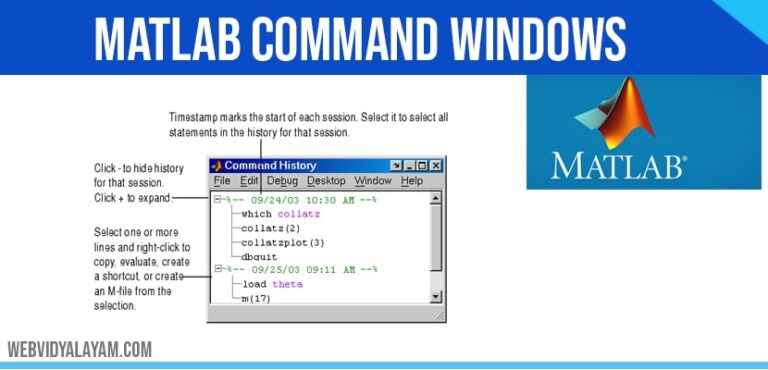
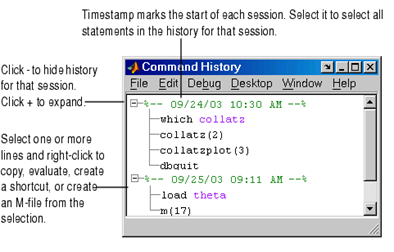
Command history is to the left side of the command window, used to display the statements which you run in the previous and current session. Which stores a maximum of 20,000 bytes it delete the oldest statements when it more than 20,000 bytes.

To delete entries in the Command History window, select an entry, or Shift+click or Ctrl+click to select multiple entries, or use Ctrl+A to select all entries. From the context menu by right-clicking select one of the delete options. Another method for clearing the command history click on the edit menu click on clear history.

EDITOR WINDOW:      

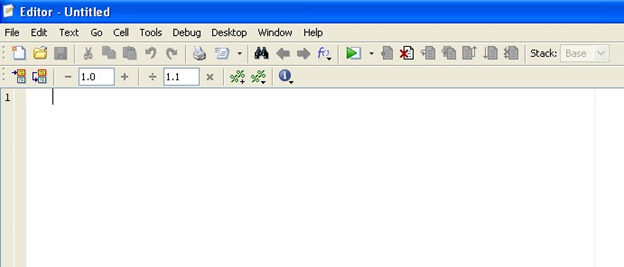
In the editor window you can write the program or script file (with the extension of .m).which consist of one or more than one commands will be executed once the program is saved. 

FIGURE WINDOW:

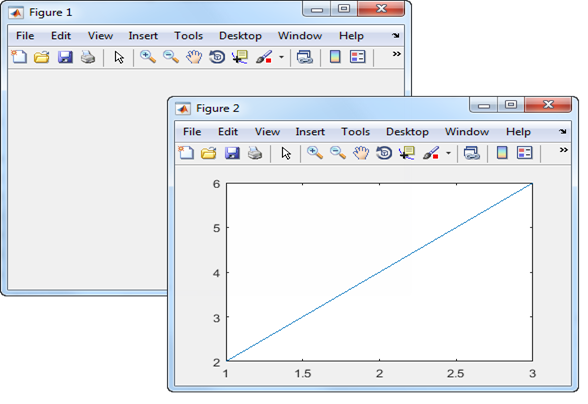
Figure window is used to represents your results in graphical form

Syntax

Create a figure graphics object:

Figure
Figure ('Property Name, Property Value...)
Figure (h)
h = figure (...)
 

Here command is used to enlarge the figure

Figure (‘units’,’ normalized’, ‘position’, [0 0 1 1]);

HELP WINDOW:

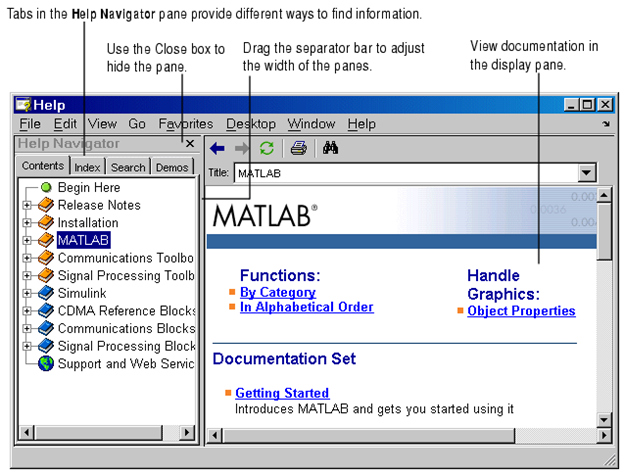
Which provides complete information regarding matlab, Help window help us to search for a document and also view of the documentation and demonstrations of a MATLAB and all other Math Works products installation. MATLAB will automatically provide the installation of a documentation and demos of a product when you want install that product. Then click the Help button in the desktop toolbar,

  • Type help browser in the Command Window, or use the Help menu in any tool. There are two panes:

CURRENT DIRECTORY:

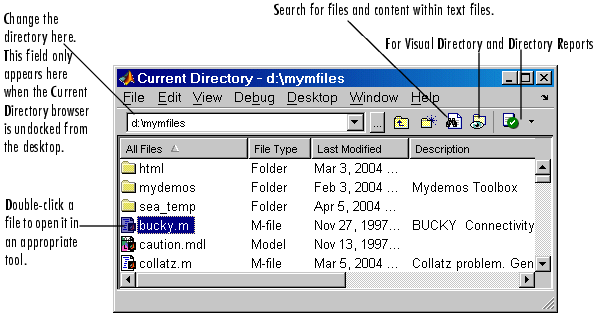
 By using the current directory field in the desktop toolbar, shown here view or change the current directory.

In MATLAB, Current Directory browser is useful for searching, viewing and help us to open and make some changes to MATLAB related directories and files. Alternatively, we can use the dircd, and delete functions. Visual Directory and Directory Reports functions will help you manage M-files.

WORKSPACE WINDOW:

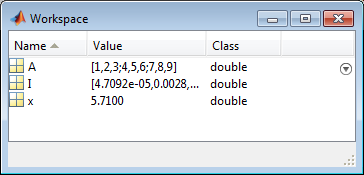
It is used to display the current variables and you can view the value of variables in the Value column of the Workspace browser. The MATLABworkspace command window will help you to create and store in memory of the variables during a MATLAB session.

LAUNCH PAD WINDOW:

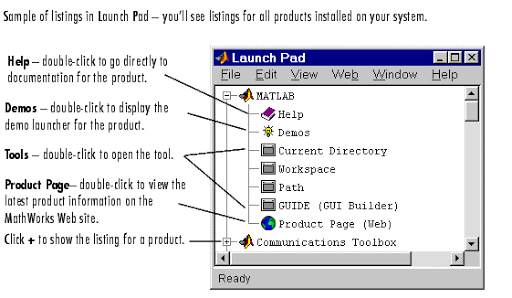
Provides the access to Toolboxes, SIMULINK, demos etc.

USE OF SEMICOLON (;) IN MATLAB:

Semicolon (;) can used to separate the commands written in the same lines. Which used to indicate end of statement.

For example:

X=4;

Y=2;

Z=x+y;

USE OF COLON (;) IN MATLAB:

The colon (:) operator plays an important part in MATLAB. Which help us to create subscript arrays, specify for iterations and vector.

Let consider an example create a row vector, containing integers from 11 to 20, you write

 For script 11:20

Ans = 11 12 13 14   15 16 17 18 19 20

  • Creating a list of numbers.
  • Possible of collapsing trailing dimensions.
  • Useful for creating a column vector.
  • Hold on an array shape during the assignment.
  • Works on all the entries in specified dimensions.

Getting Started With Matlab

0

After installation Matlab in your desktop platform double click on the Matlab shortcut icon or Select the start -> Programs -> MATLAB R2014a-> MATLAB R2014a.

  • After opening matlab on the windows platform click on the file, such as .mat, .mdl, and .fig files.
  • Each time you double-click a MATLAB file in Windows Explorer, it starts a new instance of MATLAB

STARTING MATLAB FOR DIFFERENT FILES OR M TYPE FILES

For starting a Matlab file on windows environment include the following steps.

To change the file association for M-files,

  1. In Windows Explorer, select Tools -> Folder Options.
  2. In the resulting Folder Options dialog box, select the File Types tab.
  3. Under Registered file types, select the extension M for MATLAB M-file.
  4. Under Details for ‘M’ extension, click Advanced.
  5. In the resulting Edit File Type dialog box, click Edit.
  6. In the resulting Editing action for type: ‘MATLAB M-file’ dialog box, supply the path to your MATLAB executable, matlab.exe, in the Application used to perform action field, as shown below. Click Browse to look for and select the full path to matlab.exe. Here, $matlabroot represents the root directory for MATLAB–enter the full path for your installation. $matlabroot\matlab\bin\win64\matlab.exe
  7. If you also want to open the selected M-file in the Editor/Debugger in MATLAB, you need to add this flag after the path to matlab.exe:
    -r "edit "%1"

So the entire statement is,

$matlabroot\matlab\bin\win64\matlab.exe -r "edit "%1""

8. Click OK in the Editing action for type: ‘MATLAB M-file’ dialog box. Click OK in the Edit File Type dialog box. Then click Close in the Folder Options dialog box.

On UNIX platforms, start MATLAB by typing matlab at the operating system prompt.

RUNNING THE SCRIPT ON THE MATLAB

After starting a M file with an extension .m in the current directory or clicking change directory into different path, it create a file finish.m. Which contain a debug option which used to show errors in the file, after that it as a run command for executing the file.

QUITTING THE MATLAB SESSION

To end your MATLAB session

  • By selecting/clicking (X) right side corner of the window.
  • select File -> Exit MATLAB in the desktop
  • Or type quit/exit in the Command Window
  • You can run a script file named finish.m each time MATLAB quits that, for example, executes functions to save the workspace, or displays a quit confirmation dialog box.

EXPLANATION OF WINDOWS IN MATLAB

There are 7 types of windows are available in matlab:

Command window

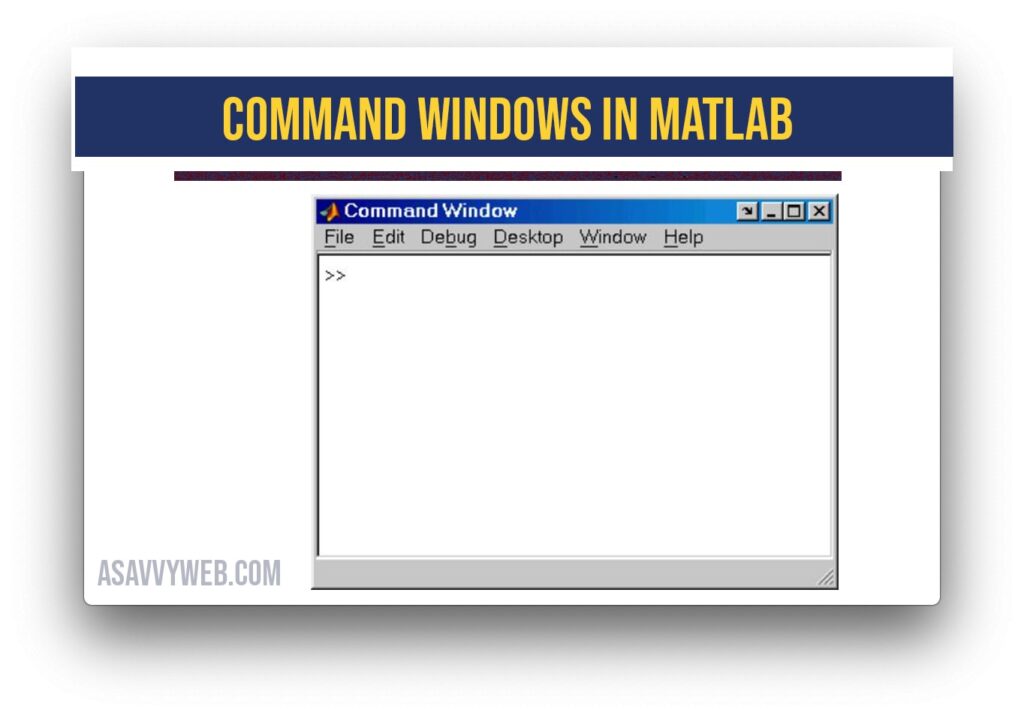
It is a main window in matlab which is used to run, open program and enter variable.

  • A user can enter interactive commands at the command prompt (>>) in the command window.
  • A user can place a series of commands into a script file, and the entire file can be executed by typing its name in the command window.
  • MATLAB script files are also known as M-files, because they have a file extension of “.m”.

How to Install Matlab on Windows and Linux?

0

Matlab Basic Introduction

Matrix laboratory (MATLAB) is a fourth generation programming language platform developed by math work.  It is an emerging tool used in every field which may include science, engineering, math, physics, visualization etc., it has many in-built commands and functions which help in solving mathematics equations, developing algorithms, plotting 2D and 3D graphs, matrix manipulation. Today, MATLAB engines incorporate the LAPACK and BLAS libraries, embedding the state of the art in software for matrix computation. As of 2020, MATLAB has more than 4 million users worldwide.

Install Matlab on windows and linux

Matlab Installation Process For Windows

Matlab provides licensed version of both professional and student version, were student version provides same specifications and difference when compared with professional version.

  • Models (including the blocks in referenced models) are limited to 1000 nonvirtual blocks.
  • Accelerator and Rapid Accelerator simulation modes are not available in student software.
  • Model blocks can be simulated in Normal mode only.

This section provides step by step information for installing and activation of Matlab for Windows User

Windows User

  • Unzip or extract the information containing MATLAB Runtime installer.
  • Next start the Matlab runtime installer.
  • After the runtime installer, it displays a dialogue box which have some information and click on next for proceeding with the installation.
  • Provide a folder where you want to install Matlab runtime in the folder selection.
  • Confirm your choices and click next.
  • Click Finish to exit the installer.

Matlab Installation Process For Linux

  • Download the Linux installer file and the standard license file to your Downloads.
  • Right click the downloaded is file and choose Open with Disk Image Mounter. If this does not appear, find it under Open with Other Application.
  • Open a Terminal, and cd into the mounted directory
  • Type sudo. /install, then press Enter.
  • Type your system password when prompted, then press Enter.
  • Click Advanced Options (top right) on the installer windows, and select I have a File Installation Key.
  • Accept the license agreement.
  • Open the file from the extracted license file and locate the Installation Key.
  • Copy and paste the Installation Key into the installer field.
  • When prompted to identify the license file, browse to and select license.dat from the extracted license files.
  • Follow the onscreen instructions. Note the path when choosing an installation folder. You will need to navigate to this directory each time you want to launch Matlab, unless you create a symbolic link (shortcut).
  • After installation is complete, launch the application and connect to the server. VPN is required when using the software off-campus.

Amplitude Modulation

In communication a carrier signal is a sinusoidal signal denoted by

C(t)=Ac Cos(2ᴨfct)

Ac= Amplitude of the carrier

C(t)= carrier signal

fc= carrier frequency

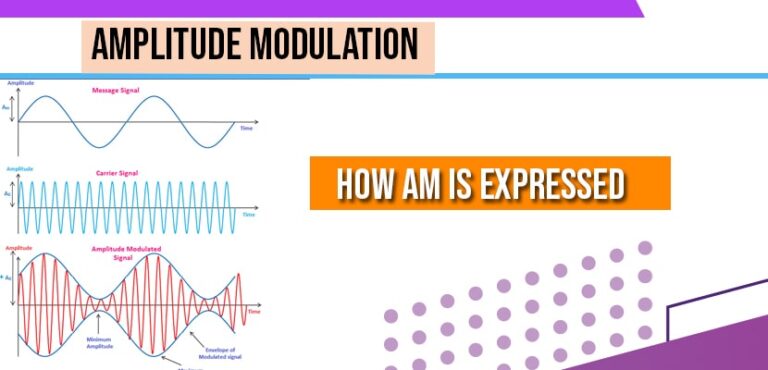
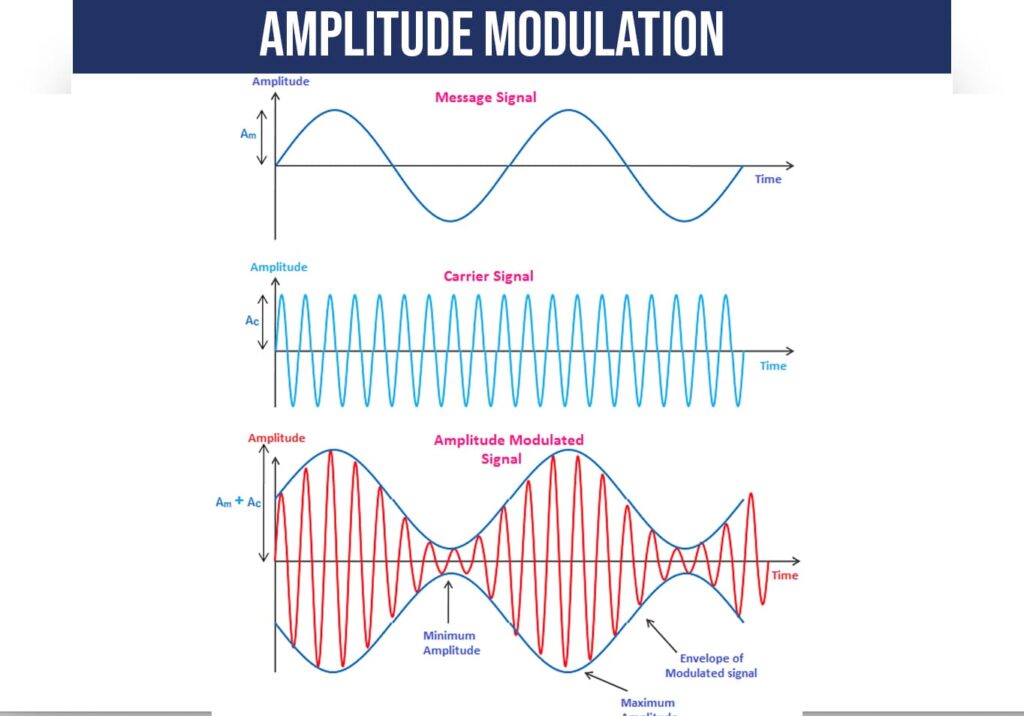
This carrier signal is fundamental in any communication system message signal or baseband signal is modulated. There are many ways to modulate the signal one among them is Amplitude modulation. In Amplitude modulation the carrier signal is modulated buy message signal or baseband signal. Or in other way Amplitude modulation is a process in which the amplitude of the carrier signal is varied instantaneously in accordance with the baseband signal keeping phase and frequency constant.

How Amplitude Modulation is Expressed

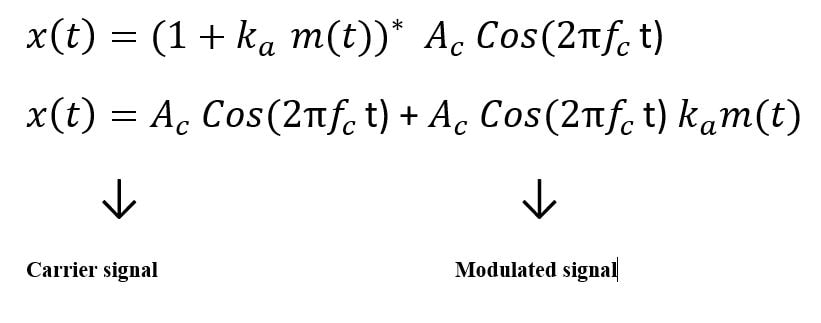
AM signal is expressed as:

ka= sensitivity of the AM signal

m(t)=message to be transmitted

In amplitude modulation what actually happens is that we have message signal which has the message to be transmitted and also carrier signal, when we multiply this carrier signal; by message the amplitude of the carrier which is constant varies according to the message.

Benefits of modulations and its Techniques

Modulation allows you to transmit information using radio signals and benefits of modulation includes height of the antenna is reduced, it reduces the interference among the signals, mixing of signals is reduced, multiplexing of signals is possible, long distance communication is possible.

Benefits of Modulation

1 .Height of the Antenna is Reduced:

We know that there are transmitting and receiving antennas for transmission and reception of signals. The condition for efficient transmission and reception is that the antenna height must be the  multiples of λ/4.

λ=c/f

λ= wavelength of the frequency

c=speed of light=3*108m/s

This implies that the antenna height and wavelength are inversely proportional. In practical by using the above formula for antenna height it is impossible to construct the antenna with the obtained output height therefore by  using some modulation height of the antenna is reduced.

2. Reduces the Interference Among the Signals:

Interference can b reduced among the signals by modulating each baseband signal with different frequencies of carrier signal so that each baseband signal has different frequency slots so that many signals can be transmitted simultaneously.

3. Mixing of the Signals is Reduced:

If the baseband signals are transmitted without modulation all the signals gets mixed as they have same frequency range. With modulation this problem is solved.

4. Multiplexing of the Signals is Possible:

With modulation many signals can be transmitted over a single channel receiver receives those signals and separates them using band pass filter.

5. Long Distance Communication is Possible:

Baseband signals have low frequency range these low frequency signals experiences attenuation when they are transmitted to longer distances  therefore they travels only short distances. Modulation increases the frequency of the baseband signals and allows to travel  longer distances

Definitions:

Carrier Signal:

carrier signal is an  alternating empty signal with higher frequency used for carrying the information.

Modulating Signal:

The signal that is to be modulated is called modulating signal

Modulated Wave:

The signal that is obtained after modulation process is known as modulated wave.

Multiplexing:

Multiplexing is the process of transmitting multiple signals over a single communication channel.

Questions:

 1. What is modulation? Why do we need modulation?

2. Benefits of modulation or advantages of modulation?

3. Define the terms signal, carrier signal, modulating signal, modulated wave?

4. Define the term multiplexing.

Modulation Techniques:

Two types of modulation techniques and they are Analog modulation and Digital modulation. Firstly we discuss Analog modulation techniques later we move on to Digital modulation techniques.

Analog modulation techniques:

1. Amplitude Modulation

2. Frequency Modulation

3. Phase modulation

What are signals and classification of signals

What are Signals

Anything that carries information is called signal. It may also be defined as any physical quantity that varies with time, space or any other independent variable. If signal depends only on one independent variable it is called one dimensional signal and if the signal depends on two independent variables then it is two dimensional signals. Signals may be represented in time or frequency domain.

Classification of Signals

Signals can be classified in to two type and they are:

  1. Continuous time signals
  2. Discrete time signals

Continuous Time Signals

Continuous time signals are defined for all instants of time. These are represented by x(t),t is an independent variable in time domain. Continuous time signals are represented by a function or graph.

Discrete Time Signals

Discrete time signals(DTS) are defined only at discrete instants of time. These are represented by x(n).’n ’is an independent variable in time domain. There are four basic ways of representing DTS they are graphical, function, tabular and sequence.

Attenuation

Attenuation is the loss in the strength of the signal or amplitude of the signals it travels through the channel. Noise, long distances causes the attenuation of the signal.

Amplification

Amplification is the process of increasing the amplitude of the signal by the given factor.

Bandwidth

Bandwidth is defined as the difference between upper and lower frequencies of the signal.

Modulation

Modulation is the process of changing the characteristics of the carrier signal with respect to the original base band signal. There are different types of modulations Amplitude modulation, Frequency modulation and Phase modulation that we will discuss  them in detail further.

Demodulation

Demodulation performs reversal operation of modulation. It retrieves the original message signal from the modulated signal using some demodulation schemes.

Repeater

Repeater is used to strengthen the received  signal and retransmits it over long distances.

The terms transducer and receiver are explained in the previous topic.

 Why signals need to be modulated?

We know that baseband signals transmitted by the transmitter is received by the receiver. You might be having a question that when the baseband signals can be transmitted directly to the receiver then what is the need of modulation? Let us assume that if all the baseband signals are transmitted over a single transmitter then what happens is that all these signals are combined as they have the same frequency range. Due to this combining the information carried by those signals gets overlapped and sent to the receiver it is difficult to the receiver to separate these combined signals. Therefore each baseband signal has to be modulated for efficient transmission.

Frequently Asked Questions:

What is signal?

Anything that transmits information is called signal.

What are the 2 types of signals?

Continuous time and discrete time signals.

What is continuous time signal?

Continuous time signals are defined for all instants of time.

What is discrete time signals?

Discrete time signals(DTS) are defined only at discrete instants of time.

Electric Field and Intensity of Electric Field

0

Electric filed

The region surrounding an electric charge or a group of charges, in which another charge experiences a force us called electric filed.

The force between two charges can be considered in terms of electric filed are as follows.

1) The charge q1 sets us an electric filed in space itself.

2) The field of q1 acts on q2, now q2 experiences a force, so the force on q2 is due to the action of field of q1 and q2.

We can also imagine that q2 sets up the field and this field acts on q1, thus produces a force on q1.

Suppose, a receiving antenna is placed in the field of a transmitting antenna. Let at once particular instant, the filed transmitting antenna reaches the receiving antenna. This reaches after a time l/c where l is the separation between two antennas and c is the velocity of light. The filed induces e.m.f in the receiving antenna. The delay in action confirms the intermediatory role of the filed in the forces between the charges.

Intensity of Electric Field E

The intensity of electric field at a point in the field is defined as the force experienced by a unit positive charge placed at that point.

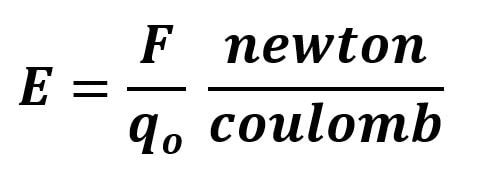
Let F be the force experienced by a test charge qo placed at a point in the electric filed, then the intensity of electric filed R at that point is given by:

It is obvious that intensity of electric filed is a vector quantity. Its direction will be the same as the direction of force. i.e the direction in which the positive charge placed in the filed tends to move. The unit of electric field is newton per coulomb

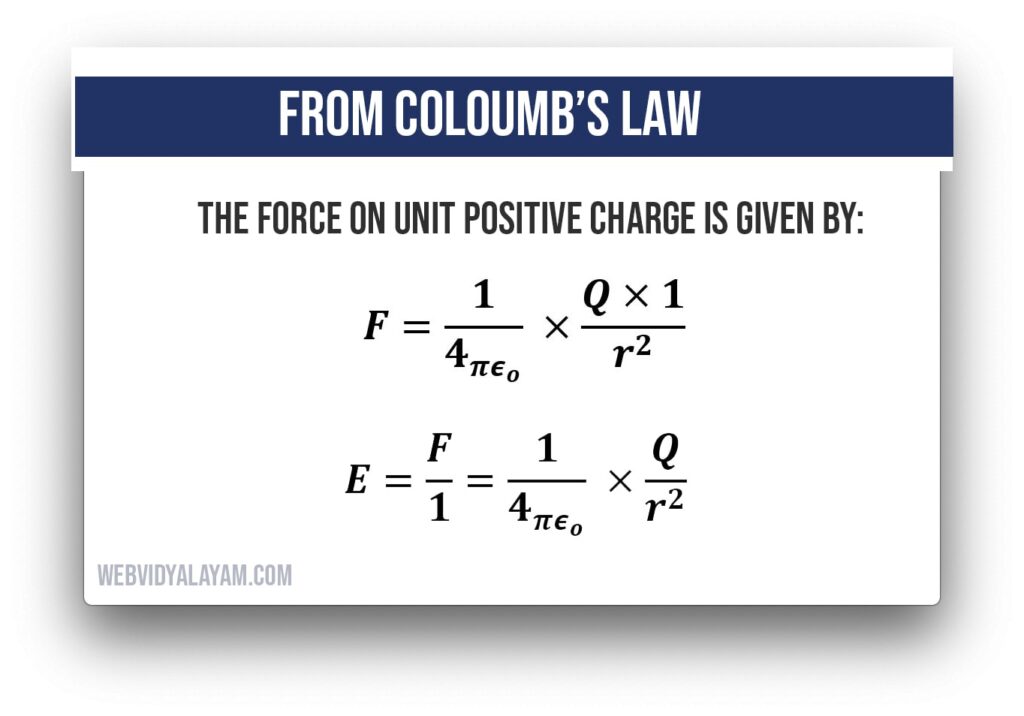
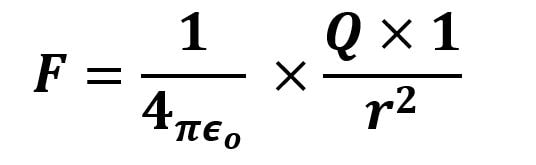
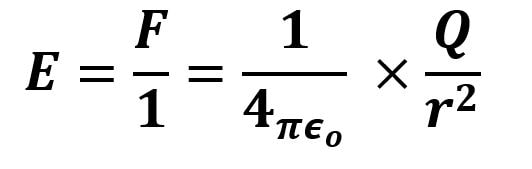
Let us consider that a unit positive charge is placed at a distance r from a point charge Q in air. From coulomb’s law, the force on unit positive charge is given by