Saturday, May 2, 2026
Home Blog Page 16

Commands in Matlab session

0
  • Command                   Description
  • CLC                           clearing of command window.
  • CLOSE ALL             Closes all plots.
  • CLEAR                       variables removed from the memory.
  • HELP                         Searches for a topic you need.
  • EXIST                        command used to check for the availability of file or variable.
  • GLOBAL                   Declaration of variables as global.
  • QUIT                          Stops MATLAB session.
  • EPS                                Defining accuracy of floating-point precision.
  • INF                              defined for Infinity.
  • NAN                           not defining a numerical result (not a number).
  • Pi                                The number p.
  • Cd                               useful for changing the current directory.
  • DATE                         present day date is displayed.
  • DELETE                         useful for deleting a File.
  • PRINT                             Prints a plot.
  • AXIS                                Sets axis limits.
  • GRID                         Gridlines will be displayed.
  • PLOT                         plots of x and y axis will be displayed.
  • PRINT                        Prints the plots and saved it to file.
  • TITLE                        To provide text on top of plot.
  • X-LABEL                  x-axis is added with labels.
  • Y-LABEL                  y-axis is added with labels.
  • HOLD                             fix the current plot.
  • FIGURE                    new figure window is created.
  • SUBPLOT                 shows plots in subwindows.
  • STEM                         shows stem plot
  • ONES                          Creates an array of ones.
  • ZEROS                        A zero array is created.
  • %s                                Format as a string.
  • %d                               Format as an integer.
  • %f                                Format as a floating point value.
  • \n                                     enter a new line in the output string.
  • \t                                      In order to insert a tab in the output string.
  •  [ ]                                     Brackets; enclosures array elements.
  •  .                                               Symbol is used to define decimal point.
  • +                                      Addition operation
  • –                                               Subtraction operation.
  • *                                              performs Scalar and matrix multiplication.
  • INPUT                            Waits for input by displaying prompt.
  • RESHAPE                      used to change size.
  • DET                                perform determinant of an array.
  • INV                                 perform inverse of a matrix.
  • RAND                           Distributed random elements uniformly.
  • RANDN                         Random elements will be distributed normally.

DELETING ROWS AND COLUMNS:

              Pair of square brackets useful for performing deleting row and column operation. Let begin with

 A = D;

 In order to delete the second column of A, let use the equation as shown

 A (:, 2) = []

This changes A to A = 16    2    13

                                      5     11    8

                                       9     7     12

                                      4     14     1

If you will delete any one element from a matrix, the result will not anymore a matrix. So, expressions like

A (1, 2) = []

 Result in an error. From the above operation we know how to delete a single element, or sequence of elements, and how to change the remaining shape of the elements into a row vector.

So A(2:2:10) = []

Results in X = 1   6   9   2   7    13   12   1

DATA TYPES IN MATLAB:

With the help of different types of data types or classes you can work with you code by creating arrays, table, matrices, floating-point and so on. Matlab combines integers, floats and booleans into one thing: doubles or floating point number.

 Example: >> a = 1.54 % this is a double

                  >> b = a > 1 % Logical (Boolean) double.

Strings. Character arrays will be treated as string matlab.

>>b = ‘abcd’ % NOTE that matlab uses single quotes

>>b (2:3)

Arrays/Matrices of numbers. In order to separate rows we use this operator ‘;‘, or same goes with blank space to separate columns ‘,’.

a= [4 5 6; 1, 2, 3].

Cell array is way to store mixed data or several strings.

d = {‘abcd’, 1, [123], ‘def’

There are 16 fundamental classes in MATLAB. Most of the classes are in the form of an array or a matrix. With the exception of function handles, this matrix or array starts with a minimum of zero in size and it will grow to an n-dimensional array of maximum size. A function will always handle in scalar matrix.

AI Technique:

AI technique is a method that exploits the knowledge and represented in  such a way that

 knowledge captures generalization. Here generalization states that whenever we are talking of a technique that exploits AI we are interested in capturing the general information of the problem instead of specific information.

2.  Another important characteristic of AI is that the knowledge that is captured should be understood by people who provide it.

3. Another characteristic is that the knowledge that is provided should be easily modified.

AI technique such that used to help overcome its own sheer bulk.

What is an AI technique?

The main aim of AI is to build a system to solve a particular problem. In order to build a system we need to do four things

  1.  Problem definition: We need to define the problem precisely. Problem definition is as important as what knowledge we capture for a problem.

 2.  Analysis of the problem: One needs to understand what type of problem that we are trying to tackle about.

 3. Isolate and represent task knowledge.

4. Choose the best problem- solving techniques.

Traditional programming Vs Programming with AI

Traditional ProgrammingProgramming with AI
Program can answer only the specific questions that it is meant to solve.Program with AI can solve all the generic questions that is designed to solve
Modification in the program leads to change in its structureModifications in program do not change the structure.
Modification may lead to affecting the program adversely.Modification in program is made easy and quick.

AREAS CONTRIBUTE TO THE GROWTH OF AI

4.ECONOMICS:

Economics also has a great impact on AI in theories like theories of utility and decision theory.

5.NEUROSCIENCE:

The other area is neuroscience which involves neurons as the information processing units.

6.PSYCHOLOGY:

Psychology involves how people behave ,perceive and process.

7.COGNITIVE SCIENCE:

Cognitive science involves cognitive information and represent knowledge.

8.COMPUTER ENGINEERING:

Computer Engineering is involved with building fast computers.

9.CONTROL THEORY:

Control Theory involves designing the systems that maximize an objective function over time.

10.LINGUISTICS:

The area that made huge impact in a way AI developed over years is linguistics. It involves knowledge representation.

A Brief History of AI and developments made in each year.

  1943:

McCulloch and pits developed Boolean circuit model of brain which is a neural model.

  1950’s:

1. Turing’s “computing machinery and Intelligence”.

             2.Samuel’s checkers program

            3. First program of ML

             4. This Samuels checkers program running on IBM machine could defeat the human.

             5.Early AI programs by Newell and Simon’s logic Theorist.

1955-1965:

1.With the Dartmouth meeting the term ‘AI’ was named.

                     2. Newell and Simon developed general problem solver. 

                     3.Gelertner developed geometry theorem prover.

                     4. McCarthy invented LISP (programming language).

1966-1973:

In this year people realized that many AI problems are intractable and identified the limitations of existing neural network methods.

1969-1985: 

   1.Development of knowledge based systems.

2.Success of rule based expert systems such as DENDRAL, MYCIN. But these did not scale                                                                                         

                     Well in practice.

1986 onwards:

1.Rise of ML

                         2.Network returned to popularity.

                        3.Major advances in ML both in algorithms and applications.

Beginning of 1990:

Role of uncertainty, In this age people began to start think about uncertainty. They came towards Bayesian networks for knowledge representation.

Beginning 1995:

AI as science.

During this age, there was integration of learning, reasoning , knowledge representation.

AI methods began to use in vision, language and data mining.

Early days of AI:

In late 1995, Alen Newell and Herbert Simon developed the logic theorist. This was the first AI program representing each problem in form of tree and can be solved by selecting the branch that would most likely result in the correct conclusion.

In 1956,John McCarthy organized a conference on artificial intelligence. John McCarthy is one of the founding fathers of AI together with Marvin Minsky, Allen Newell and Herbert A. Simon. In 1985,Charniak and Mc Dermott stated that” the ultimate goal of AI is to build a person”.

            Later, it was summed up by Haugland that “don’t say that the ultimate goal of AI is to build something that appears to be a person”. The fundamental goal of AI according to Haugland is machines  with minds not merely to mimic intelligence or to produce some cleaver fake .

            Nilsson’s definition of AI  is that AI is to build machines that perform tasks normally requiring human intelligence. To perform the same task  that humans require intelligence by machines the following should be involved in machines:

 Interaction with real world:

 This means that the machine should be able to perceive, understand and act .It involves things such as speech recognition and image understanding.

Reasoning and planning:

This involves modeling the external world, planning and decision making and deals with unexpected problems and uncertainties.

Learning and Adaptation:

Any intelligent system should be able to learn and adapt. It should have internal models  which should be always updated for example a baby learning to categorize and recognize the things example: Animal.

The areas that contributed to the growth of AI:

A huge number of disciplines contributed to growth of AI. The following are the list of areas that made huge impact on the growth of AI

1.PHILOSOPHY:

 In philosophy It involves logic and methods of reasoning

2.MATHEMATICS:

One of the major contributions to growth of AI is mathematics. It involves format representation and proof Theory algorithms: computation – Decidability and tractability.

3.STATISTICS AND PROBABILITY:

The third area that contributed to growth of AI is Probability and Statistics, It involves uncertainty and learning from the data.

What is Java & Features of Java

Introduction to Java:

Java is a high level, class based and object-oriented programming language. It was released by Sun microsystems in the year 1995 by James Gosling.  It is platform Independent follows logic “ write once ,run anywhere” i.e., the compiled code can run on all platforms which supports java. Java is used to built desktop application, web application, android application, Enterprise application.

Features of Java:

Simple: Java is easy to learn  by removing all difficulties  like pointers, operator overloading as we see in C++ or any other programming languages.

Portable: This is  platform independent, which means that any application written on one platform can be easily executed in another platform.

Object-oriented: Everything is considered to be an object which possess some state, behavior and all operations are performed using these objects.

Secured: All code is converted in bytecode after compilation, which is not readable by a human. And java does not supports explicit pointers and uses exception handling to handle the exceptions , By this java is secure.

Dynamic: It supports dynamic memory allocation due to which memory wastage is reduced and performance of the application is increased.

Distributed: Java is distributed because users can create distributed applications in java. RMI and EJB are used to create distributed applications.

Robust: Java has a strong memory management system. It helps to eliminate  errors and the code is checked during compile and runtime.

Interpreted: Java uses Just-In-Time (JIT) interpreter along with the compiler for the program execution.

Multithreaded: The main advantage of multi- threading is that it does not occupy memory for each thread . It shares a common memory area. Threads are important for multi-media, web applications.

High performance:  With the use of bytecode it is easy to translate into native machine code. With the use of JIT compilers , it enables high performance.

3 Components of java:

There are three components.

JVM (Java Virtual Machine):

It is an abstract machine, physically does not exists. bytecode can be executed in run time environment. It is  a platform dependent.

Functions:

  1. Loads code.
  2. Verifies code.
  3. Executes code.
  4. Provides run time environment.

JRE (Java Runtime Environment):

  • JRE means runtime environment in which bytecode is executed. It implements the JVM and it consists of  class libraries and other files that JVM uses . It is a software package that contains what is required to run a program. It’s an implementation of JVM which physically exists.

JDK ( Java Development Kit):

It is the tool necessary to:

  • compile
  • Document
  • Package java programs.

The JDK includes JRE which contains tools for programmers. Along with JRE, it consists of  interpreter, a compiler(javac), an archiver(jar), and other tools. In short it contains JRE+ development tools.

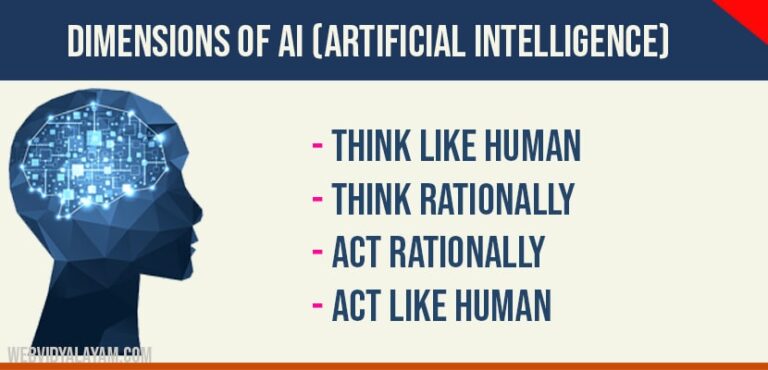
Dimensions of AI

  1. Think like human
  2. Think rationally
  3. Act rationally
  4. Act like human

Think like human:

One of the dimension of AI is thinking humanly. In 1960, cognitive revolution came into existence which involves information   processing psychology. For thinking like human it requires scientific theories of internal activities of brain.

Think rationally:

Thinking rationally requires notation and rules of derivation for thoughts. It involves direct line through mathematics and philosophy.

Act rationally:

Rational behavior is doing right thing ,one which is expected to maximize goal achievement given the available information. Rational acts do not necessarily involve thinking. For example if glass in your hand is slipping out of grip then you hold it by applying more pressure. we do it without thinking, However achieving perfect rationality in complex environments is not possible.

Act like human:

Creating machines that perform  functions that require intelligence. There are a number of capabilities to be incorporated in machines to act like human they include:

  1. Natural Language Processing
  2. Automated reasoning
  3. Machine learning
  4. Computer vision
  5. Robotics
  6. Knowledge representation

In 1950, Alan Turing published a paper in computing machinery and intelligence in which he hypothesized about the possibility of creating machines with intelligence.

In this paper, Alan Turing starts with words “can machines think?”. He proposed a test called Turing test or Imitation game to prove that machines could think.

The Turing test involves the following in his test. He considered a human interrogator who questions  and receives responses from both machine and the humans. If he cannot distinguish the difference between both responses then the machine is said to be intelligent.

Artificial Intelligence: Introduction, Definition and History

Introduction:

Artificial Intelligence is a growing topic in today’s world.  Everything that we are using in our day to day life is coupled with Artificial Intelligence. Real time applications of Artificial Intelligence in our daily life in smart phones .We all use smart phones  with the help- of internet we are searching  the  information through some browser. The very next time when you search the similar information it will suggest you the previous search. Similarly whenever you shop through online applications like Amazon etc., The next time you open the application it will show you the suggestions regarding your previous search. Do you know how this is possible? Here the data is stored in cloud storage with the  help of AI by using predictive analytics.

Definition of AI:

AI refers to the intelligence signified by the machines. The main goal of AI is to replicate the behaviour of human brain involved in certain activities like problem solving and decision making. Here the machines refers to anything that endorse the characteristics associated with human brain.

History of AI:

Leonardo Da Vinci has designed a  humanoid robot in  the year 1495.In 1651,Thomas Hobbes published his book named as Leviathan which specifies  social contract and the ideal state and stated  that  “it might be possible to build Artificial Animal”. In 1738, French inventor and engineer Jacques de Vaucanson invented the mechanical duck which can flap its wings paddle, drink, eat and digest grains. In 1801french silk weaver and inventor Joseph marie Jacquard invents an  automated loom that is controlled by punch cards.In1900,Frank Baum invented the robot named the wonderful Wizard of OZ. Karel capek introduced the term robot in the play RUR(Rossum’s Universal Robots).In 1948,Dr.W Grey Walter interested in what if robots could model brain functions. He built two small robots named as Elmer and Elsie. These two robots Elmer and Elsie do not have brains or pre programming. In these robots instead of using basic analog circuits vacuum tubes and two sensors for light and touch are incorporated which recharges themselves when they sense their batteries are running down.

Matlab command windows

0

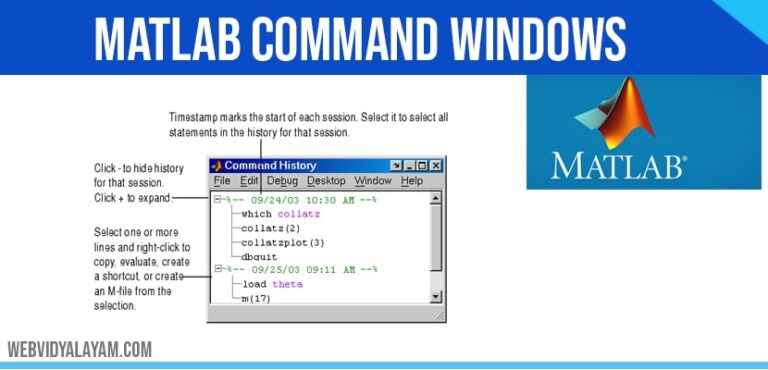
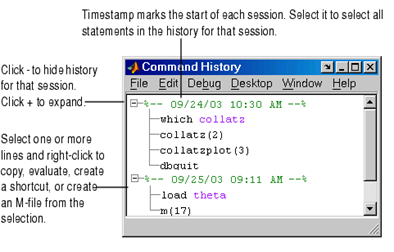
COMMAND HISTORY:

Command history is to the left side of the command window, used to display the statements which you run in the previous and current session. Which stores a maximum of 20,000 bytes it delete the oldest statements when it more than 20,000 bytes.

To delete entries in the Command History window, select an entry, or Shift+click or Ctrl+click to select multiple entries, or use Ctrl+A to select all entries. From the context menu by right-clicking select one of the delete options. Another method for clearing the command history click on the edit menu click on clear history.

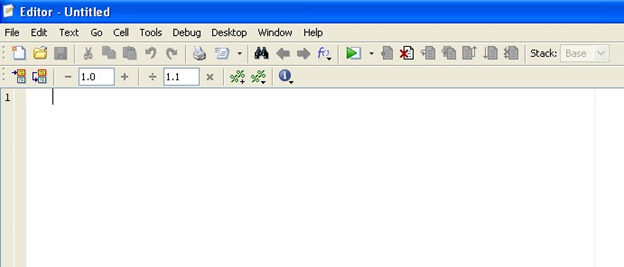
EDITOR WINDOW:      

In the editor window you can write the program or script file (with the extension of .m).which consist of one or more than one commands will be executed once the program is saved. 

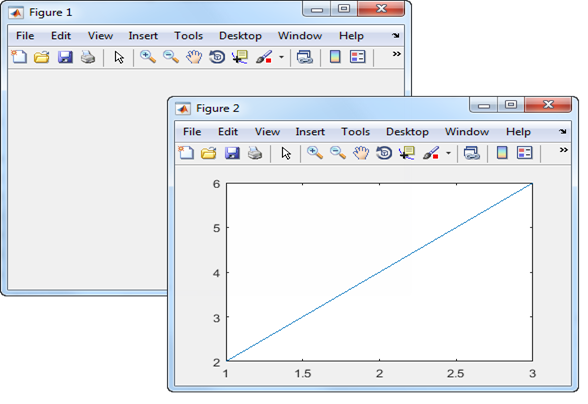
FIGURE WINDOW:

Figure window is used to represents your results in graphical form

Syntax

Create a figure graphics object:

Figure
Figure ('Property Name, Property Value...)
Figure (h)
h = figure (...)
 

Here command is used to enlarge the figure

Figure (‘units’,’ normalized’, ‘position’, [0 0 1 1]);

HELP WINDOW:

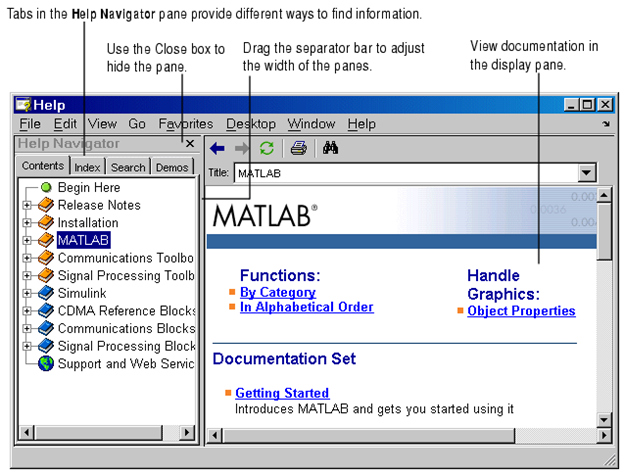
Which provides complete information regarding matlab, Help window help us to search for a document and also view of the documentation and demonstrations of a MATLAB and all other Math Works products installation. MATLAB will automatically provide the installation of a documentation and demos of a product when you want install that product. Then click the Help button in the desktop toolbar,

  • Type help browser in the Command Window, or use the Help menu in any tool. There are two panes:

CURRENT DIRECTORY:

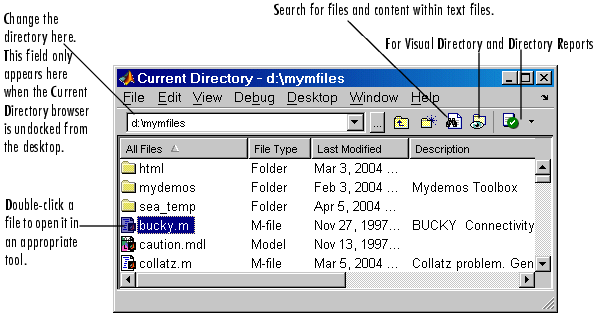
 By using the current directory field in the desktop toolbar, shown here view or change the current directory.

In MATLAB, Current Directory browser is useful for searching, viewing and help us to open and make some changes to MATLAB related directories and files. Alternatively, we can use the dircd, and delete functions. Visual Directory and Directory Reports functions will help you manage M-files.

WORKSPACE WINDOW:

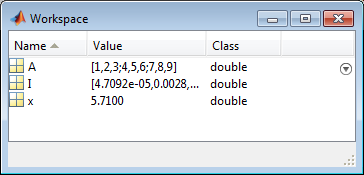
It is used to display the current variables and you can view the value of variables in the Value column of the Workspace browser. The MATLABworkspace command window will help you to create and store in memory of the variables during a MATLAB session.

LAUNCH PAD WINDOW:

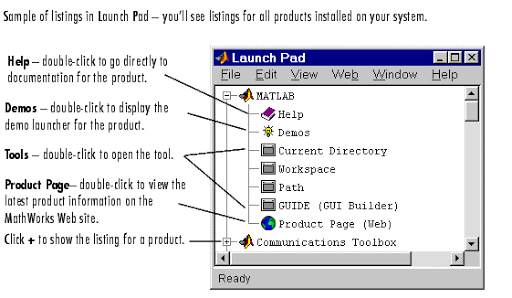
Provides the access to Toolboxes, SIMULINK, demos etc.

USE OF SEMICOLON (;) IN MATLAB:

Semicolon (;) can used to separate the commands written in the same lines. Which used to indicate end of statement.

For example:

X=4;

Y=2;

Z=x+y;

USE OF COLON (;) IN MATLAB:

The colon (:) operator plays an important part in MATLAB. Which help us to create subscript arrays, specify for iterations and vector.

Let consider an example create a row vector, containing integers from 11 to 20, you write

 For script 11:20

Ans = 11 12 13 14   15 16 17 18 19 20

  • Creating a list of numbers.
  • Possible of collapsing trailing dimensions.
  • Useful for creating a column vector.
  • Hold on an array shape during the assignment.
  • Works on all the entries in specified dimensions.

Getting Started With Matlab

0

After installation Matlab in your desktop platform double click on the Matlab shortcut icon or Select the start -> Programs -> MATLAB R2014a-> MATLAB R2014a.

  • After opening matlab on the windows platform click on the file, such as .mat, .mdl, and .fig files.
  • Each time you double-click a MATLAB file in Windows Explorer, it starts a new instance of MATLAB

STARTING MATLAB FOR DIFFERENT FILES OR M TYPE FILES

For starting a Matlab file on windows environment include the following steps.

To change the file association for M-files,

  1. In Windows Explorer, select Tools -> Folder Options.
  2. In the resulting Folder Options dialog box, select the File Types tab.
  3. Under Registered file types, select the extension M for MATLAB M-file.
  4. Under Details for ‘M’ extension, click Advanced.
  5. In the resulting Edit File Type dialog box, click Edit.
  6. In the resulting Editing action for type: ‘MATLAB M-file’ dialog box, supply the path to your MATLAB executable, matlab.exe, in the Application used to perform action field, as shown below. Click Browse to look for and select the full path to matlab.exe. Here, $matlabroot represents the root directory for MATLAB–enter the full path for your installation. $matlabroot\matlab\bin\win64\matlab.exe
  7. If you also want to open the selected M-file in the Editor/Debugger in MATLAB, you need to add this flag after the path to matlab.exe:
    -r "edit "%1"

So the entire statement is,

$matlabroot\matlab\bin\win64\matlab.exe -r "edit "%1""

8. Click OK in the Editing action for type: ‘MATLAB M-file’ dialog box. Click OK in the Edit File Type dialog box. Then click Close in the Folder Options dialog box.

On UNIX platforms, start MATLAB by typing matlab at the operating system prompt.

RUNNING THE SCRIPT ON THE MATLAB

After starting a M file with an extension .m in the current directory or clicking change directory into different path, it create a file finish.m. Which contain a debug option which used to show errors in the file, after that it as a run command for executing the file.

QUITTING THE MATLAB SESSION

To end your MATLAB session

  • By selecting/clicking (X) right side corner of the window.
  • select File -> Exit MATLAB in the desktop
  • Or type quit/exit in the Command Window
  • You can run a script file named finish.m each time MATLAB quits that, for example, executes functions to save the workspace, or displays a quit confirmation dialog box.

EXPLANATION OF WINDOWS IN MATLAB

There are 7 types of windows are available in matlab:

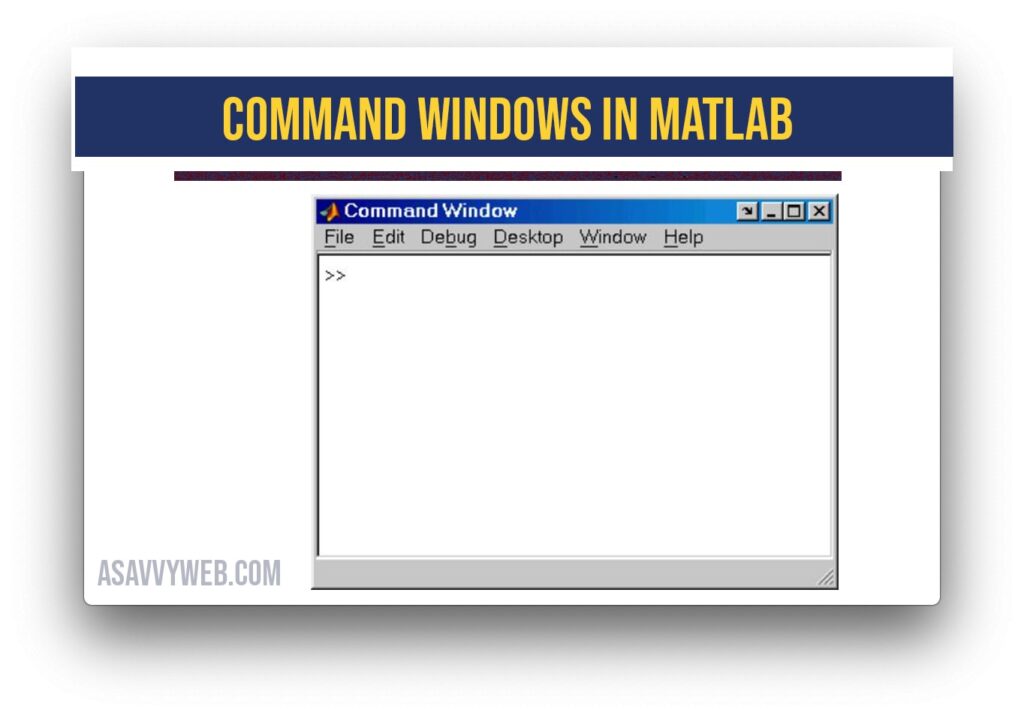
Command window

It is a main window in matlab which is used to run, open program and enter variable.

  • A user can enter interactive commands at the command prompt (>>) in the command window.
  • A user can place a series of commands into a script file, and the entire file can be executed by typing its name in the command window.
  • MATLAB script files are also known as M-files, because they have a file extension of “.m”.

How to Install Matlab on Windows and Linux?

0

Matlab Basic Introduction

Matrix laboratory (MATLAB) is a fourth generation programming language platform developed by math work.  It is an emerging tool used in every field which may include science, engineering, math, physics, visualization etc., it has many in-built commands and functions which help in solving mathematics equations, developing algorithms, plotting 2D and 3D graphs, matrix manipulation. Today, MATLAB engines incorporate the LAPACK and BLAS libraries, embedding the state of the art in software for matrix computation. As of 2020, MATLAB has more than 4 million users worldwide.

Install Matlab on windows and linux

Matlab Installation Process For Windows

Matlab provides licensed version of both professional and student version, were student version provides same specifications and difference when compared with professional version.

  • Models (including the blocks in referenced models) are limited to 1000 nonvirtual blocks.
  • Accelerator and Rapid Accelerator simulation modes are not available in student software.
  • Model blocks can be simulated in Normal mode only.

This section provides step by step information for installing and activation of Matlab for Windows User

Windows User

  • Unzip or extract the information containing MATLAB Runtime installer.
  • Next start the Matlab runtime installer.
  • After the runtime installer, it displays a dialogue box which have some information and click on next for proceeding with the installation.
  • Provide a folder where you want to install Matlab runtime in the folder selection.
  • Confirm your choices and click next.
  • Click Finish to exit the installer.

Matlab Installation Process For Linux

  • Download the Linux installer file and the standard license file to your Downloads.
  • Right click the downloaded is file and choose Open with Disk Image Mounter. If this does not appear, find it under Open with Other Application.
  • Open a Terminal, and cd into the mounted directory
  • Type sudo. /install, then press Enter.
  • Type your system password when prompted, then press Enter.
  • Click Advanced Options (top right) on the installer windows, and select I have a File Installation Key.
  • Accept the license agreement.
  • Open the file from the extracted license file and locate the Installation Key.
  • Copy and paste the Installation Key into the installer field.
  • When prompted to identify the license file, browse to and select license.dat from the extracted license files.
  • Follow the onscreen instructions. Note the path when choosing an installation folder. You will need to navigate to this directory each time you want to launch Matlab, unless you create a symbolic link (shortcut).
  • After installation is complete, launch the application and connect to the server. VPN is required when using the software off-campus.