Thursday, March 5, 2026
Home Blog Page 4

How to Add Audio Files on WordPress

0

If you want to add audio files on your wordpress then you can easily add and wordpress supports html5 and you can add various audio format files as well and if you want you can embed them and upload audio files and then create a playlist as well.

Supported Audio File Formats in WordPress

WordPress uses HTML5 audio and is compatible on all modern browsers and all devices and supports MP3, OGG, and WAV file formats.

Audio file format MP3 is used most on wordpress and supported on all other browser and mobile devices as well and it is widely supported format for audio files.

Add a Single Audio File in WordPress

When you try to add a single audio file on your wordpress post or page then its pretty easy. So, let’s see in detail below.

Step 1: Login to your admin dashboard with your login credentials

Step 2: Now Go to Posts and click on new posts or existing posts.

Step 3: Click on Plus (+) button on top

Step 4: Now, click on Add media from the screen to add media or audio file on your wordpress post.

Step 5: Now, click on media add media button and select the folder or audio file form your computer and click on Upload and wait for the media to upload it on your website or post (server)

Step 6: Now, once you upload audio file then you need to insert audio file into your post.

Step 7: Once upload completes then you need to insert it to your post and click on insert button and wait for the wordpress to insert audio file into your posts.

Step 8: If you see the post in visual editor then you will see the audio file will be inserted and  embedded and you will will see the audio shortcode in text editor.

Step 9: Once you insert audio file then go ahead and click on update or publish post on top and check the front end and you will be able to see the audio file on yoru post or page.

That’s it, this is how to insert or add a single Audio File in WordPress posts or pages.

How to Insert More Tag in WordPress or Read More Tag on Pages Without Plugin

0

Do you want to show a summary of your article on your homepage with a read more link? Then you can easily add more tags in wordpress and in wordPress we have an option of built-in methods that allows you to insert more tags. One of these methods is known as the More Tag. So, let’s see in detail below.

You can now insert and add wordpress read more expand without plugin and add more tags and also change read more texts and if you are using elementor then also you can insert read more tag in elementor

Adding the More Tag in WordPress

Adding more tags in wordpress is pretty simple and straightforward and all you need to is click on more tags wherever you want and add them and you can also add it to the new article or for an existing article.

Once you’re done writing, we need to click on a line where we would like to end the summary and show a read more link. Next, click on the More Tag button from the toolbar.

We will notice that a dashed line with ‘More’ in the centre will appear in your blog post. We can insert the more tag anywhere in the post, like in the mid sentence, in the middle of a paragraph, or after the first paragraph.

If we are using the text editor, then we can use the ‘more’ button in the toolbar or manually enter the more tag like this:

<!–more→

Also Read:

1) How to Enable Debug Mode in WordPress

2) How To Fix Error Too Many Redirects Issue In WordPress

3) How to Fix Crawled Currently Not Indexed Solutions

What’s the Advantage of using More Tag vs Excerpts

Remember earlier we mentioned that WordPress comes with two built-in methods for showing the post summary with a read more link. Those methods are More Tag and Excerpts.

We can add an excerpt for any post using the Excerpt box in our post editor screen. If we do not see that box, then click on the screen options tab on the top right hand corner and check the excerpt option.

This will display an excerpt meta box below your post editor.

While excerpts may sound like an easier option, there are two downsides to using an excerpt.

The first is that excerpts are completely theme dependent. If your theme does not use the_excerpt tag, then no matter what we type in the excerpt box, your theme will show the full content of your post on your homepage and archive pages.

The second downside to using excerpts is that they do not show images or any other formatting for that matter. They’re displayed as plain text.

Whereas the More Tag is completely theme independent meaning it will work on all well-coded WordPress themes. Second, it allows us to display images and all post formatting such as links, quotes, bold/italics, etc in your post summary.

What’s the Downside of using More Tag

The biggest downside of using the WordPress More Tag is that it is something you have to manually enter in all of your posts whereas excerpts are automated.

While WordPress allows you to enter a custom excerpt in the excerpt box, it can also auto-generate an excerpt based on your character count.

Depending on your preference, this may be a downside.

The other downside of using a More Tag is if we use a theme that uses excerpts, then it will override the More Tag and provide an excerpt with the length defined by your theme.

Whether we use More Tag or excerpts, it’s important that you show a summary on your homepage and archive pages rather than showing full content. See our article on the topic, full Text vs summary (excerpt) in your WordPress archive pages.

Common WordPress More Tag Problems

The biggest issue we hear with WordPress More Tag not working is when it comes to pages.

By default, we cannot use the More Tag in WordPress pages. However, there is a quick fix that allows you to add read more tag in WordPress pages.

Another common issue is more tag not working on homepage. If w are using a static page as your custom homepage, then the link above should fix the issue.

The only other reason why more tag won’t work on the homepage is if your theme is designed to show excerpts on the front page in which case your more tag is being overridden, and you should use excerpts instead.

We hope this article helped you learn how to properly use the more tag in WordPress.

How To Fix Error Too Many Redirects Issue In WordPress

2
  • To fix the error, too many redirects issue on your wordpress website -> First thing you need to do is deactivate your plugin folder and see if plugins are causing the issues.
  • Disable plugins one by one and then find the plugin which is causing the issue and deactivate it.
  • Check with your wordpress url structure and make sure that your permalinks url are set to correct path here and save and close permalinks for confirmation and reset your htaccess file on wordpress will fix Error Too Many Redirects Issue In WordPress.

On your wordpress website you can experience or get this error too many redirection issues in wordpress, most of the time there will be an issue with htaccess redirection or code redirection from wordpress plugin conflicts and you can fix this issue easily on your own.

Error Too Many Redirects Issue In WordPress occurs when wordpress finds a redirection and this is mainly due to plugins or code issue which is getting conflict with the wordpress core files and causing the redirection issue and the good news is that there is a quick way to troubleshoot and fix this issue..

If you are seeing an error for too many Redirects on your WordPress Site and can’t get access as it’s a common error and get rid of this error too many redirects and what cause the issue like wordpress misconfiguration issues as well.

Fix  Error Too Many Redirects Issue In WordPress

Below wordpress troubleshooting methods will help you fix Error Too Many Redirects Issue In WordPress and get back your wordpress site working easily.

Deactivate All WordPress Plugins

What you have to do is Deactivate all WordPress Plugins. Normally you can do this through the Plugins area on the wordpress dashboard. 

But as you probably can’t access the dashboard our next step is to deactivate wordpress plugins isin the FTP client or file manager app on your hosting control panel. 

Deactivate WordPress Plugins Folder Using FTP

Step 1: Connect to the website using the FTP Client using your ftp details of your website.

Step 2: Now, click on public_html and Go into the folder WP Content.

Step 3:Now, You can see the plugins folder and all your plugins installed on your wordpress website will be listed here and deactivate the plugins.

Step 4: Now, Simply, Rename this Plugin folder to deactivate plugins because we have renamed the plugin folder wordpress won’t be able to find it and will automatically deactivate all the plugins.

Now you can try visiting your website and if you’re able to log into the site this means that one of the plugins was causing the error. To see which plugin is causing the issue.

Find Which Plugin is Causing the Issue and Deactivate it

Step 1: Go back to the FTP Client and rename the plugin deactivate folder back to plugins.

Step 2: Now, Go back over to the wordpress dashboard and click on Plugins in the menu

Step 3:. Now, you need to activate and Deactivate Plugins on WordPress and visiting your site to see if it causes the error. 

Step 4: Repeat that until you find which plugin it is. There are a couple of options from here you can either look for an alternate plugin to use on your site or contact the plugin support team and report the issue.

Another major cause of the too many redirects error is a misconfiguration in the wordpress URL settings.

Clear Browser Cookies And Cache

Sometimes there may be an issue with your browser cookies and caches as well. So, its also recommended first to visit your website in incognito mode or use a proxy server.

If you can access your site from anothers browser and everything looks normal. Then you need to clear the original browser cookies in cash. Let’s see some quick examples wit Google Chrome. With Google open all you have to do is

  1. Click on Chrome at the top  left and then on clear browsing data.
  2. Check the boxes for Cookies and caches.
  3. And then hit the clear data button. You should now be able to access the website.

If that didn’t fix the issue for you then let’s move on to the next step. The most common cause of the too many redirect issues is Plug-in conflict on your WordPress site. This is unusually a plug-in trying to set up redirects that conflict with the default wordpress redirects.

Check and Fix WordPress URL and Site URL

Make sure that your wordpress URL in Settings are same and the wordpress site address url is same and also in wp config file you can set it.

Step 1: Login to your WordPress Dashboard using your administration login details.

Step 2: Click on Settings

Step 3: Now, click on General and  check  with the wordpress site url.

Normally, these can be found by going to Settings then General and in the wordpress dashboard. For most sites the URLs in WordPress address and site address here have to be the same. 

If they are not then they can cause the redirect error to troubleshoot this. When we can’t access the site we need to connect to the FTP Client again or use a file manager. 

When connected to your site in the FTP Client go into the WP Content folder then into themes. Find your themes folder and go into that from here we need to find the functions PHP file. Right click on that and you’ll be able to edit the file in a plain text editor like notepad or text edit. Add the following code to the bottom of the file.  Save the file to your website and try visiting the site to see if that resolves the error. If fixing the wordpress Urls doesn’t work then the next thing we can look at.

Reset WordPress .htaccess File

Resetting the htaccess file this is the special file which will be hidden and that is used by the website server to manage redirects and other server settings. Sometimes wordpress plugins make changes to the htaccess file which can cause this error and few plugin will have access to htaccess file to rewrite it.

To fix this we need to manually reset the wordpress .html file. This time we will see how to access the file through the file manager on your wordpress hosting control panel.

Now let’s see this through GoDaddy, Inmotion, bluehost or any other hosting provider but this should be something that you can access through your hosting provider’s dashboard. 

Step 1; Login to your hosting cpanel using login details and Once you log into Godaddy or bluehost or inmotion or any other hosting cpanel you want to go to advanced.

Step 2: This opens your hosting cpanel which has a lot of features that helps you change settings on your website. 

Step 3: Now, you will be able to see file manager here under the file section but it can also be found under the file section but it can also be found under the advanced option in the menu too on the left click on the file manager and this will open a new tab with the file manager.

Step 4:Now, Go to (publich_html) folder – public underscore HTML folder and this is where your wordpress site files are stored. We can see it here in the column on the left of the screen. 

Step 5: Click on the public underscore HTML folder we can now see all the files that are contained in the folder in this section here. 

Step 6: Your dot htaccess should be somewhere close to the top of this list of files. When you have found it right click on it and download a copy of it as a backup.

Note: If you can’t see .htaccess file, then you need to select show hidden files and these files are invisible.

Step 7: Now we need to delete this file from the website. After you’ve done that try visiting the website and if everything works normally this means your htaccess file was causing the redirect error.

Step 8: What we need to do now is log into your WordPress dashboard and make sure your website has recreated the dot htaccess file. 

Step 9: To do that go to settings -> Hover over to that and click permalinks -> simply scroll to the bottom of the page and click save changes. You should now have a new htaccess file.

Once you recreate htaccess file or reset your htaccess file then your issue of Error Too Many Redirects Issue In WordPress will be resolved successfully and If none of these steps fix your error then the next thing to do is contact your hosting company and make sure there are no server issue and they will be able to troubleshoot the issue. 
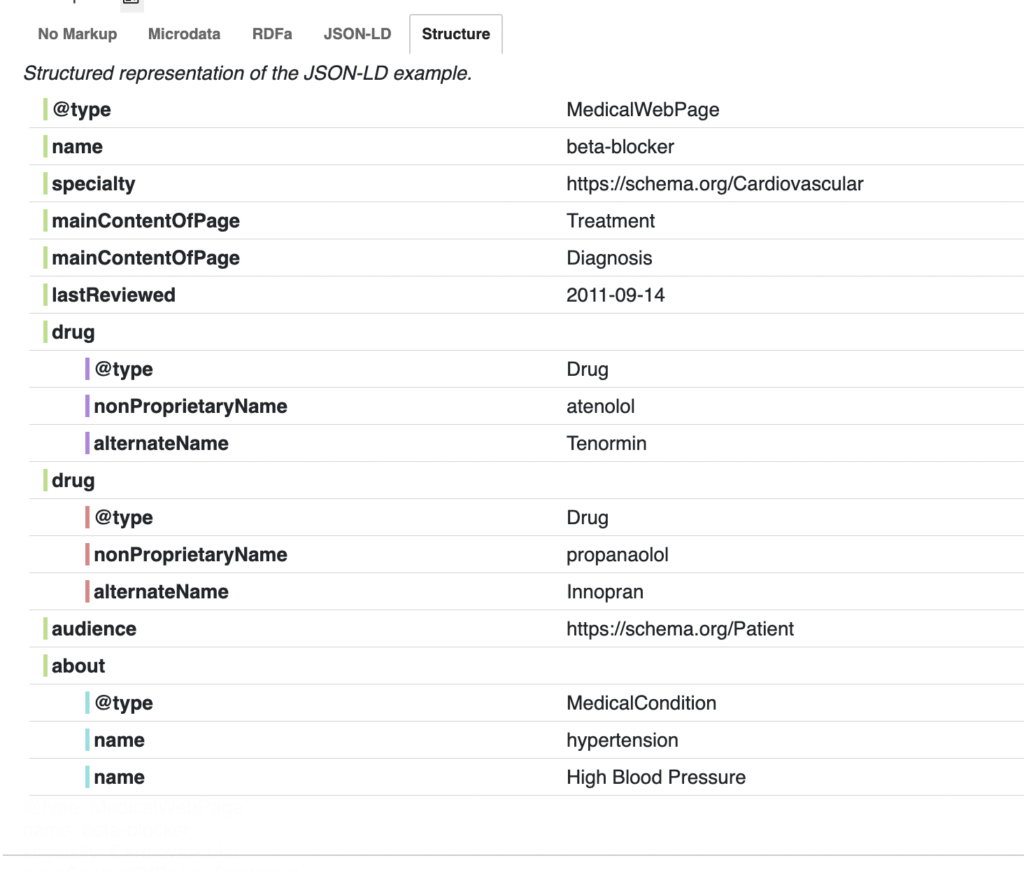
How to Implement MedicalWebPages for Medical and Health Care Websites

In schema markup there are many schema markups types available at present there are 792 types of schema markups are available and they will be increasing and schema org – which arranges your hierarchy of your website in a format which contains item types and item properties and item list and many schema item properties which helps developer or webmaster to arrange the page in a right and correct manner and embed structured data on their web pages with correct item property and used by search engines when crawling the page and understand your webpage better in easy way and make google understand about your page better and what is your page about and what information your are providing by implementing structured data or schema org on your website or web pages.

Implement MedicalWebPages for Medical and Health Care Websites

Structure data helps google to access your content better and without structure data also google can access your website content and when you add structured data on website, it will be eligible to appear in rich results in Google (but Google will Not support medicalWebPage Schema – check list of supported structured data supported by Google here) and the main use of structure data on your website is for rich results only from Google point of view and google supports only few set of structured data only and not all schema org structured data types are supported by google and what it means is, it helps your webpage in standardized format for providing information about a page by classifying the page content and to tell google about the detailed information of your page and more information regarding schema org medical and healthcare can be found on official schema org docs but MedicalWebPage Structure Data is Not a ranking factor and adding medicalwebpage schema will not help in crawling as well as google can detect, crawl, and analyse your content without structure data as well with normal supported structure data.

There are many schema markups and types available and when you are trying to implement for health care and medical websites and MedicalWebPage for health and medical types and subtypes it is very useful for content publishers to organize health and medical content on their webpages by implementing health and medical schema depending up on the content and treatment and diagnosis and information they are offering by their medical experts and doctors and the content that you are offering and you need to make sure that you are not implementing in the wrong way and not choosing the wrong schema type for your medical and health care website schema or structure data this can be sometimes tricky as this is not supported or gives you an advantage but it helps search engines to understand your web page better and easily and in organized manner.

Health Care and Medical Schema helps publishers to mark up the implicit structure in the medical information they publish.

structure - Implement MedicalWebPages for Medical and Health Care Websites

Schema org For Healthcare and Medical 

For Medical and Health care publishers schema org provides and helps then to annotate different entities with different codes which refers to the already existing medical vocabularies like RxNorm, SNOMED, MeSH, ICD, UMLS etc and also for the scholarly articles of medical domain with different set of properties.

Also do note that – The schema is targeted for the use of web use only and not for clinical markup or clinical data exchange.

Healthcare and Medical Schema Types

Below are the medical and health care schema types available

MedicalCondition

Medical condition of the human body which affects the normal functioning condition and more information about a specific medical condition, Anatomy, its diagnosis, treatment, ).

MedicalScholarlyArticle

A scholarly article for a medical domain or a page with a record, abstract, or full text of a medical scholarly publication.

Drug

Drug usage, dose, chemical or biological substance and information about a medical drug.

MedicalGuideline

Recommendations made by standard society and how to treat and diagnose a medical condition and more information regarding a medical guideline.

MedicalWebPage

Which provides Medical information regarding medical topics or with a single-topic web page about a health or medical topic.

Implement MedicalWebPage

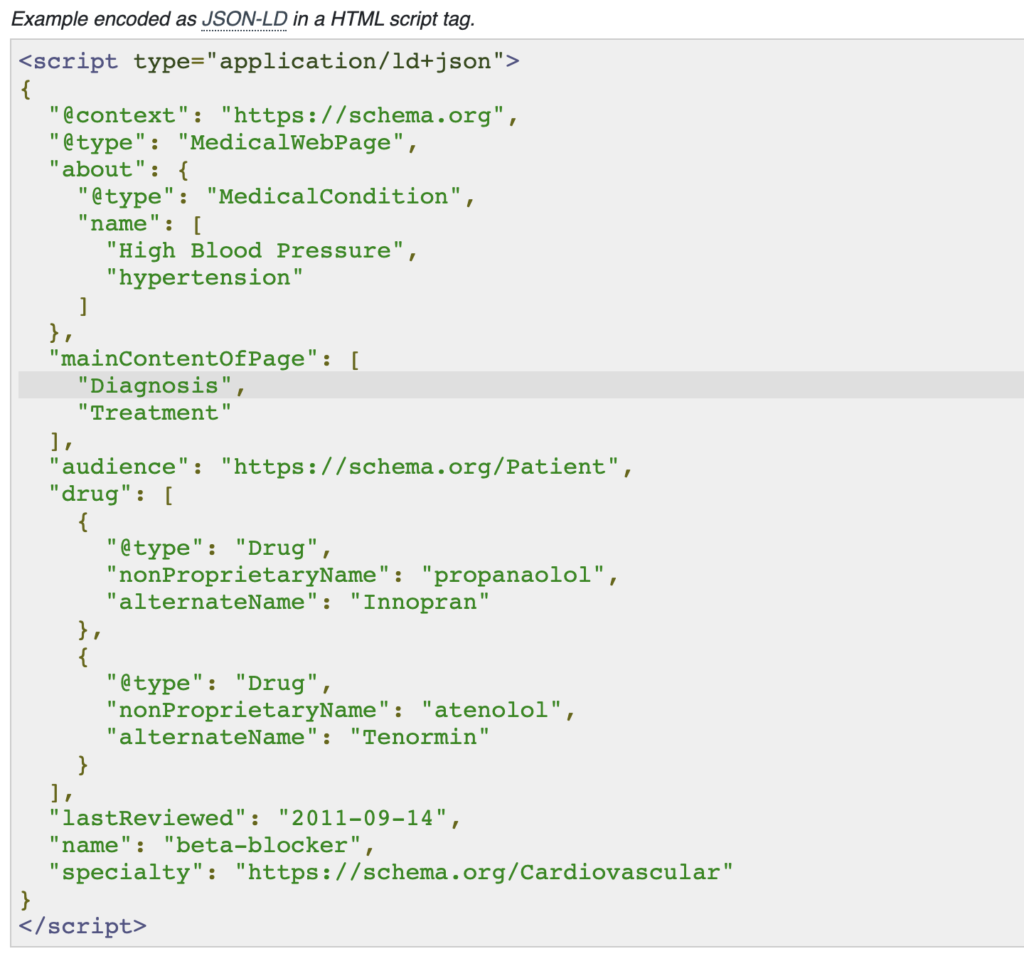
Using the property of MedicalWebPage which allows content to be tagged with the aspects of medical practice being described on the page (diagnosis, treatment, etc).

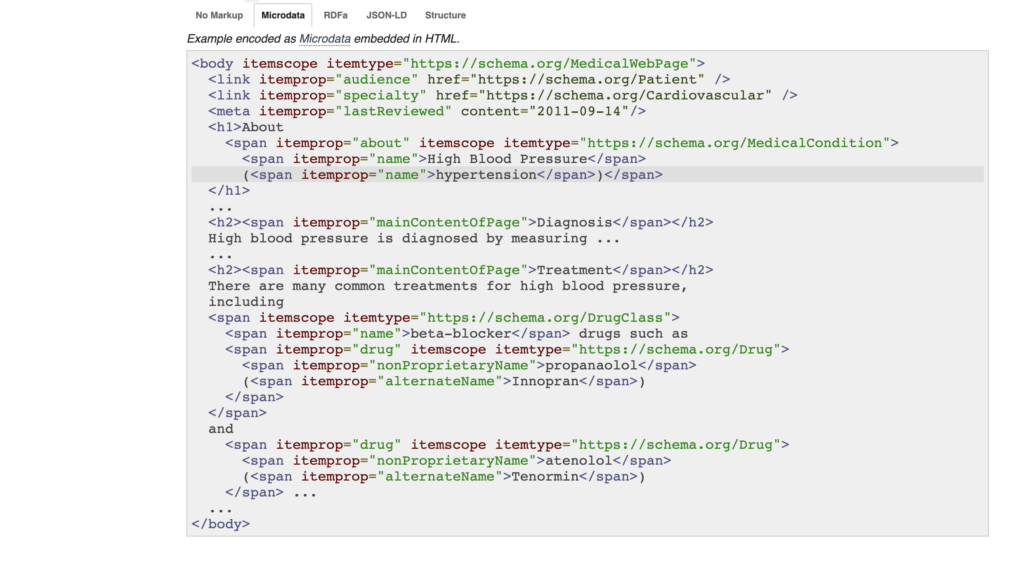
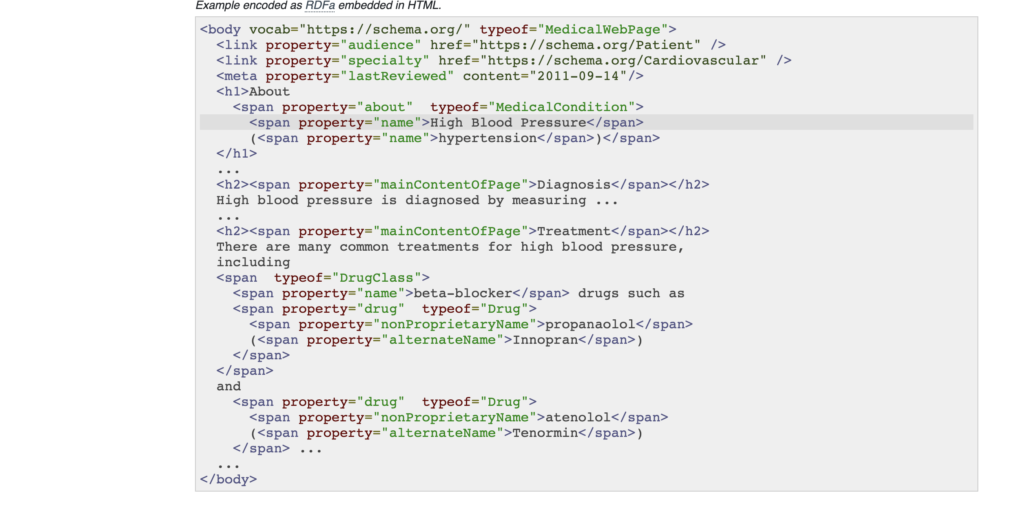
You can implement MedicalWebPage on your Medical and Health Care website using Microdata and RDFa embedded in html, JSON-LD HTML Script Tags instead of having no markup on your medical and health care websites.

Microdata - Implement MedicalWebPages for Medical and Health Care Websites

Example of MedicalWebPages implementation

There are many Properties for MedicalWebPages Available on Schema org website 

Health and Medical types model and Entities

Anatomy

Conditions

Causes

Diets

Devices

Exercise

Guidelines

Plans

Signs and symptoms

Studies and trials

Supplements
Risk factors 

Therapies (including drugs and procedures)

Tests

By using the above entities medical and health type models allows authors or webmasters and even developers markup their pages using the core entities and relationship with their appropriate entities which makes the content easier to find and using  property of MedicalWebPage which allows content to be tagged with the aspects of medical practice being described on the page (diagnosis, treatment, etc).

Does Medical WebPage Schema is Used by Google

No! Medical Webpage Schema is not used by Google nor its a ranking factor or any other structured data is used to generate rich results and for a list of supported schema types used by google – you can check the complete supported structure data schema org and Google will not support all scheme org properties which are available on schema org website. 

How to Fix Crawled Currently Not Indexed Solutions

In search console if you are getting to see an error in indexed coverage section excluded urls then this means there is an issue with your website content and the quick solution for this is you need to focus of content and improve  your website content for the pages listed in excluded – crawled current not indexed urls and ask google to re-crawl in search console using url inspection tool and then wait for google to recrawl and index your website urls in google search console.

You will get to see the status of the urls which you are having on your website and once google crawls the url the status of the url will get updated and first google will find the url and it will discover your urls and the status in this process will be discovered currently not indexed and once google gets crawl the url the status of the url will be crawled currently not indexed.

What is Crawled Currently Not Indexed

Crawled Currently not indexed Means – Google scuffessfully crawled your website url but google feels that the url does not meet the requirements to be visible in google search and google will index content which is useful to users and if google feels the content is not useful for users or if there is an issue with your website content like thin content, scrapped content or the content has been rewritten from other website by taking the pieces of content then url will be listed in crawled currently not indexed status (excluded status in search console).

How to Fix Crawled Currently Not Indexed Solution

Below troubleshooting methods will help you fix crawled currently not indexed in search console.

Fix Crawled Currently Not Indexed 

Go to Search Console and login with your login credentials and select your Website properly.

First thing you need to do is perform a live url inspection and see if the status is changed or not, if your website url is published recently then sometimes you will get to see the url in crawled currently not indexed as well.

Perform a live URL inspection on Search Console

Step 2: Go to Index coverage section on the left side menu

Step 3: Now, On the right side -> Select the excluded section and click on it. (make sure this excluded section is selected).

Step 4: Now, scroll down and see the list of urls listed in below table and locate crawled currently not indexed and click on it.

Step 5: Now, all the urls which are crawled currently not indexed will be listed here.

Step 6: Click on the url and inspect the url and perform a live url test in the search console.

Sometimes google takes time to get the status update and if you have published the post recently on your website then you may see crawled currently not indexed as well.

Improve Content of the URL 

If you still see the status of url when performing live url inspect it is  crawled currently not indexed then you need to improve the content on the page and see how you can improve the content and improve internlinkg and make sure your website content is not duplicated internally or having similar content on your website.

So, finally, if you want to get rid of or fix crawled currently not indexed status in search console -> you need to review your the url which is not indexed and the simple solution and the most effective one to fix crawled currently not indexed is -> start reading the page or post and start optimizing the page by providing more relevant information and if you are looking how to improve then there is a special documentation provided by google itself in their documentation.

Improve Internalinking

You can try improving your website by linking your website internally good and make google bot crawl your website easily. Sometime by adding internal links will help google bot to understand your content on your website.

How to Fix Discovered currently not indexed in Search Console

  • To fix discovered currently not indexed -> you need to wait until google bot crawls the discovered urls to index in google search.
  • Discovered currently not indexed is not an error – it is an indexing process – first url will be discovered by google bot and then it will be crawled for indexing.
  • Discovered currently not indexed status will change if url gets indexed in google and you can update your page and sitemaps and then ask google to recrawl may help the discovered url to index in google search results.

Google Search Console Discovered – Currently Not Indexed

Many people experience this issue once they publish the url on their website they will update sitemaps and submit url to google using url inspection tool and after some time the status of the url will be discovered –  currently not indexed and google excludes the url in search console.

But many of them don’t know that this is not the error – this is just the indexing process and this is how google discovers urls and then crawls it for indexing and then ranks them accordingly depending on many quality rater guidelines which rely on many ranking factors.

If you are seeing this error in excluded urls in search console -> index coverage section – Discovered currently not indexed then you need to wait for google bot to crawl and index it, there is nothing wrong with the page or too many urls listed in discovered currently not indexed table and there is no need to worry.

Discovered Currently Not indexed means -> Google discovered your website urls successfully but these urls are not crawled for indexing yet. You need to wait until google bot crawls then and ranks them accordingly in google search results and there is no guarantee how much time it takes. It depends on your website quality and content.

What is Discovered Currently Not Indexed means

Discovered currently not indexed Means – Google discovered your website urls and google found these url through sitemaps or any other resources like -> Internal links or any anchor links present on your website and discovered the urls successfully and that is the reason these urls are listed in index coverage section  with Excluded Status.

How to Fix Discovered Currently Not Indexed Error in Search Console

Below methods will help you fix discovered currently not indexed error in the search console.

To fix the Discovered Currently not indexed error, the first thing you need to check is – is your web page or url not having any issues when crawling by google bot.

Discovered Currently Not indexed is Temporary

Yes! Discovered currently not indexed is temporary only and once google find the urls and carwls it for indexing then google will mark the url status in search console as url is on google or crawled currently not indexed status.

Wait Until Google Crawls it for Indexing

If you see your website url is in Discoved currently not indexed status in excluded section then you need to wait until google bot crawls it for indexing and rank accordingly. You need  to be patient and monitor index coverage section status and update your site regularly and update sitemaps.

URL Status is Discovered Currently Not Indexed Long time??

If you see your website url status in index coverage section – discovered currently not indexed then you need to modify your page with relevant information and request it to index using URL inspection tool – request indexing feature. 

Once you request index a url – then url will be added to crawl que and when google bot crawls your website then your website url will be crawled and indexed in google search and the status of discovered currently not indexed will be fixed.

Optimize your website for Crawlers

You need to update your sitemap file and make sure that your sitemap file is updating regularly and make sure that your website is linked internally well with internal links as google bot crawls anchor links and finds the urls.

Improve Your Website Quality

Discovered currently not indexed for a long time indicates that your website is not indexing and there is an issue with website quality or website content which you are offering to users and google is not able to trust your website due to many reasons like author, duplicate content, scrapped content or any other content related errors..

If google bot figures out that the crawling of the page is not necessary as the information you are providing is already present on other website or if it doesn’t meet the requirements of google quality rater guidelines then you can expect these urls to be in discovered currently not indexed section or the status may be update to crawled currently not index in excluded status in index coverage section in search console.

AND-OR Graph

0

Nodes labeled by component databases have sets of successor nodes each labeled by one of the components. These nodes are called AND nodes because in order to process the compound database to termination all of the component database must be processed to termination. so this node here in order to process C B Z to termination, C,B and Z needs to be processed to termination. In order  to process BM to termination both B and M needs to be processed to termination; so  on and so forth. Another important  thing that one needs to realize is that the successor nodes labeled by the result of rule application. Like here when I have D and L or I have B and M as  I applied rule onto C .They are referred to as the ‘OR’ nodes. Because , in order to process a component database to termination , the database resulting from only either this or this must be processed to termination. These are referred to as ‘OR’ nodes The structure called AND-OR graphs  are useful for depicting the activity of production systems. So these are the nodes , these are the or nodes. So the decomposable production system if you see these nodes that I have marked now as AND here are important because if a component database is ; all of the component databases need to be moved to termination. So, that is the and node here .That is the and node. This is the and node. Both  of them needs to be moved to the termination. So, finally we can say that the notion of decomposable production system encompass a technique often called problem Reduction in AI. We have reduced the problem  of taking C B Z to termination. To the problem of taking C, B and Z individually to termination.

Goal of decomposable production system

Problem Reduction idea usually involves replacing a problem goal by a set of   sub goals such that if the sub goals are solved, the main goal is also solved.

Explaining problems in terms of decomposable production system allows us to be indefinite about whether we are decomposing problem goals or problem states.

Variables in python

0


What is a variable?


• A variable refers to memory location.
• It is used to store the value .
• Variable is used to give data to the computer for processing .
Specifying a variable
• In python we don’t need to specify the type of variable because python isa dynamically typed to get variable type.
• Variable names include letters and digits but they have to begin with a letter or an underscore.
• It is suggested to use lowercase letters for variable name.


Types of variables


There are two types of variables in python local and global variables.
• In Python, global variable is a variable declared outside of the function or in global scope.
• global variable can be accessed inside or outside of the scope function
Local variables
Local variables are the variables that are used with in a function or method.
Global variables
Global variables are used when we use the variable in the entire program.
Assigning values to variables
• Python allows us to assign values to the variables.
• Lets assume the value 5 is assigned to the variable ‘a’

Multiple assignment
• in multiple assignment , multiple variables are assigned with multiple values.
Example

Declaring and re-declaring the variables.
• Lets first see how to declare a variable. Its that simple that assigning variable a value to hold.
• Example

a=9
print(a)
9
• Now we re declare the variable.
• a=9
print(a)
a= 33
print(a)
output:
33
Here the output gives the re assigned value instead of first value. This means that the firstvalue is replaced by second value.
Deleting the variable
• In python you can delete the variable that you previously assigned the value using del command.
Example
a=7
print(a)
del a
print(a)

Introduction to cellular concept

0

Cellular Concept:

  • Cellular concept deals with reduction of service area by employing high power transmitters that offer high capacity in a limited spectrum allocation.
  • In a geographic region, each base station is assigned with different group of channels from the total number of channels available to the entire system.
  • This distribution cochannels reduce the interference between the base stations and mobile users under their control.
  • The channels can be reused until the interference between cochannel stations is at acceptable level.
  • The number of base stations increase with increase in demand for service, hence, providing additional radio capacity within the radio spectrum.
  • Cellular concept is responsible for manufacturing every piece of user equipment of large area such that any mobile can be accessed within the range.

Advantages of cellular system:

  • Problem of spectral congestion  is solved by cellular system.
  • It offers high capacity with limited spectrum.
  • This high capacity is achieved by limiting the coverage area of each base station to a small geographic area termed as cell.
  • In cellular system each high power transmitter is replaced with several low power transmitters.
  • Each base station is allocated a  portion of channels and nearby cells are allocated completely different channels.
  • All available channels are allocated to small number of  base stations.

Introduction to CellularConce

0

Cellular Concept:

  • Cellular concept deals with reduction of service area by employing high power transmitters that offer high capacity in a limited spectrum allocation.
  • In a geographic region, each base station is assigned with different group of channels from the total number of channels available to the entire system.
  • This distribution cochannels reduce the interference between the base stations and mobile users under their control.
  • The channels can be reused until the interference between cochannel stations is at acceptable level.
  • The number of base stations increase with increase in demand for service, hence, providing additional radio capacity within the radio spectrum.
  • Cellular concept is responsible for manufacturing every piece of user equipment of large area such that any mobile can be accessed within the range.

Advantages of cellular system:

  • Problem of spectral congestion  is solved by cellular system.
  • It offers high capacity with limited spectrum.
  • This high capacity is achieved by limiting the coverage area of each base station to a small geographic area termed as cell.
  • In cellular system each high power transmitter is replaced with several low power transmitters.
  • Each base station is allocated a  portion of channels and nearby cells are allocated completely different channels.
  • All available channels are allocated to small number of  base stations.